At the end of May 2026, I was nominated for the Microsoft Most Valuable Professional (MVP) Award in recognition of my community contributions through Microsoft Q&A, and my contributions as an Azure Champion. Because of this, I was invited to apply for the MVP Award and showcase the high impact contributions I have made both online and within my local community.
So, I applied to the MVP program and documented all my contributions I have made in both, the online and my local community. I then submitted my application on the 1st of June 2026.
I then had to wait while Microsoft reviewed my MVP application and evaluated my contributions. This can take up to 90 days to be reviewed. So, I waited for what felt like a long two months.
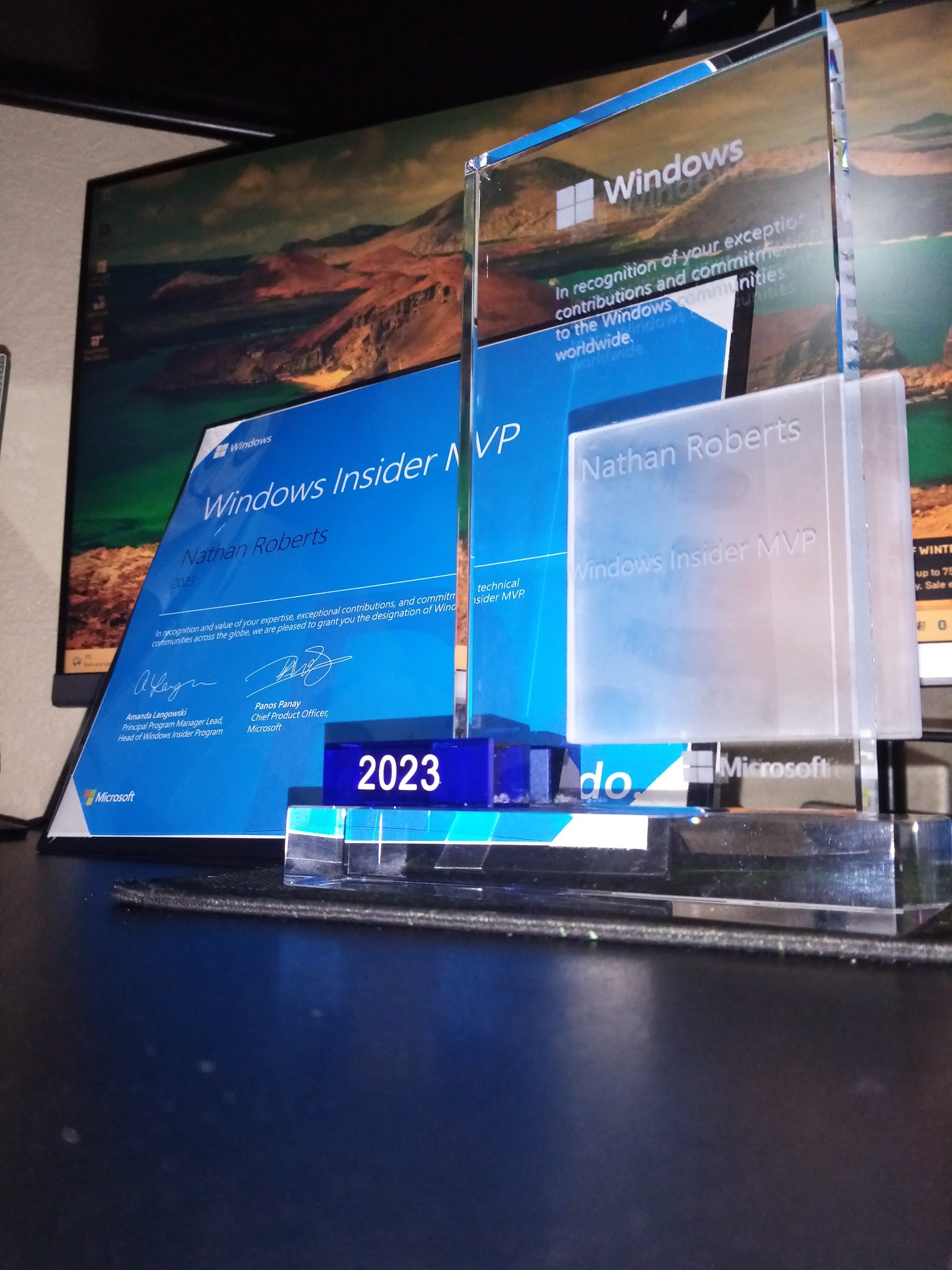
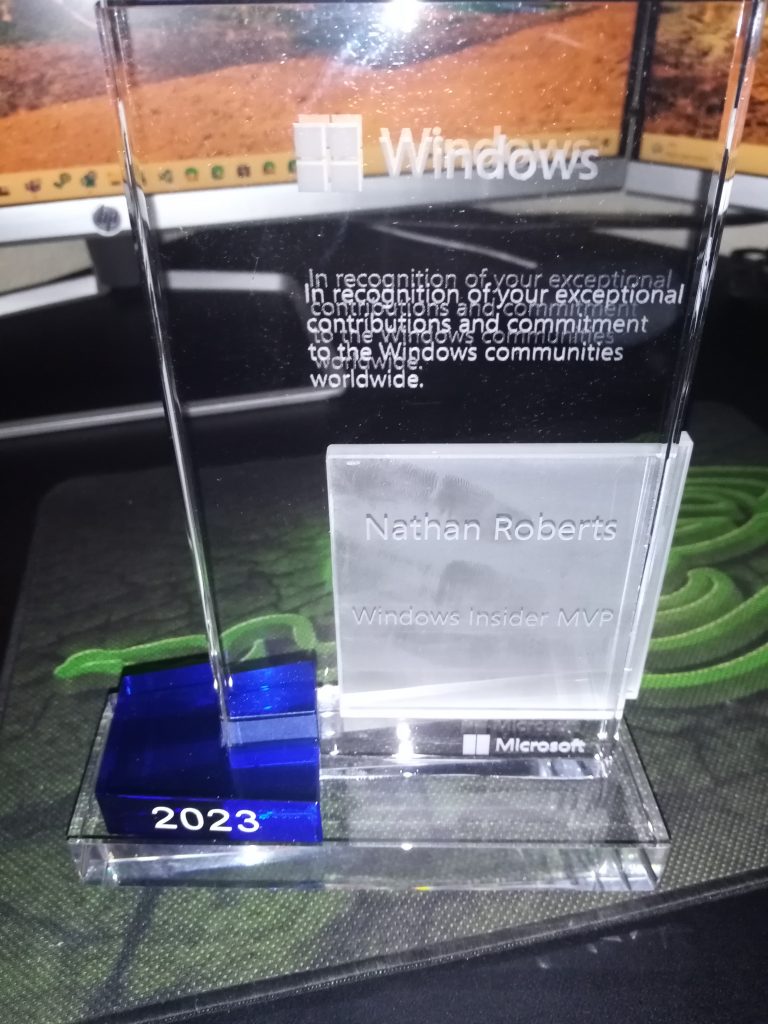
On the 1st of September 2026, I learnt that I was awarded the Microsoft MVP award for Microsoft Azure. My technology area is Azure Operations & Management. Receiving the news came as a complete surprise. While I was proud of the contributions I had made, I never expected to be selected for such a prestigious award. As soon as I found out, I completed the onboarding process and before I knew it, my crystal MVP trophy was on its way!
Figure 1: My glass crystal MVP trophy with the 2026-2027 disk
Once I had completed the onboarding, I posted an announcement on my LinkedIn profile. I then updated my LinkedIn profile and began exploring the MVP portal, learning more about the programme and the resources available to MVPs.
My MVP award was primarily based on the contributions I have made within the Microsoft Q&A community and the wider technology community. This involved me:
Answering questions in Microsoft Azure forums.
Contributing as an Azure Champion and reaching 13th place on the Azure Community Leaderboard.
Moderating the wider Microsoft Q&A community as a Volunteer Moderator (VM).
Contributing as a Microsoft Q&A Champion.
Participating in Microsoft product feedback programmes and providing valuable feedback to Microsoft.
Supporting people and organisations within my local community.
There are also many additional contributions that I cannot include in detail because they were not publicly visible activities. However, the contributions listed above demonstrate the impact of helping real-world users, organisations, and communities through Microsoft Azure and other Microsoft technologies.
The Microsoft MVP Award recognises exceptional community leaders who share their knowledge, expertise, and passion for Microsoft technologies with others. MVPs help people learn, solve problems, and grow through their contributions both online and within their local communities.
There are roughly 4,000 MVP’s globally (in 2026) located all around the world, who can all be found on the MVP community site here: Search | MVP Communities
Microsoft MVP’s make contributions both online and in their local communities, doing things like:
Hosting meetups,
Hosting workshops/events,
Writing articles,
Helping people in the Microsoft online communities,
Helping people in other online communities,
Writing books,
Creating videos,
Contributing to open-source software,
Submitting feedback and participating in feedback sessions with Microsoft,
And much more.
MVPs do not need to contribute in every one of these ways. What matters is making a positive impact, helping others, and demonstrating leadership within the community. Every MVP’s journey is unique, and that diversity is one of the things that makes the programme so special. 😊
One of the most exciting aspects of becoming an MVP is the opportunity to engage directly with Microsoft product teams, network with other MVPs from around the world, and attend the annual MVP Global Summit. MVPs may also have opportunities to speak at Microsoft events, participate in community activities, and support Microsoft initiatives in a variety of ways.
Being recognised as a Microsoft MVP is a significant milestone in my technology journey. From answering questions online to supporting my local community and working with Microsoft technologies, it has been incredibly rewarding to help others and learn along the way.
I would like to thank everyone who has supported me, worked with me, encouraged me, and helped me throughout this journey. Achieving the Microsoft MVP Award would not have been possible without the support of the wider community.
I look forward to continuing to contribute to Microsoft communities, helping others, sharing knowledge, and making an even greater impact during my MVP award year and beyond.
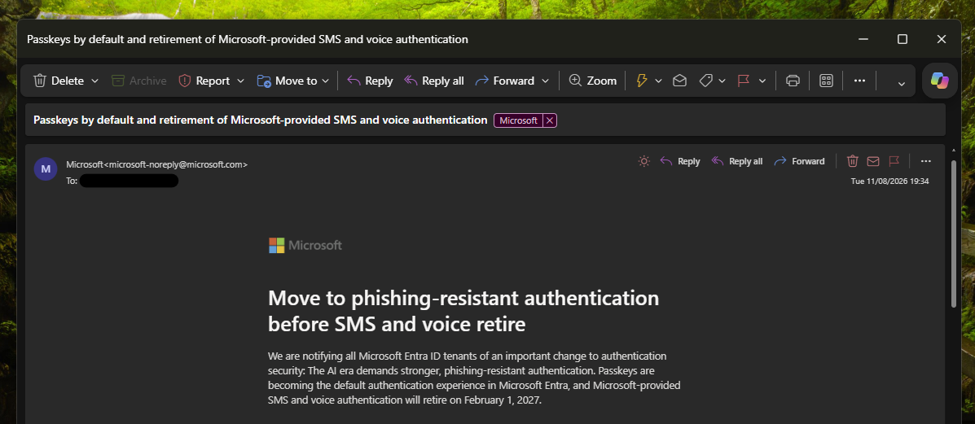
Microsoft has begun emailing administrators of Microsoft Entra ID tenants about the retirement of SMS (text messaging) and voice authentication on 1 February 2027. The email explains the upcoming changes and how users will be notified. The first phase of the rollout begins in September 2026.
What is SMS and voice authentication?
SMS and voice authentication are methods of verifying your identity during sign-in. After entering your password, you receive either a text message containing a verification code or an automated phone call that reads the code to you. You then enter the code to complete the sign-in process.
When Microsoft introduced two-step verification for Microsoft accounts in 2013, SMS and voice calls were among the most common methods available to consumer users. They provided an additional layer of security by requiring access to a trusted phone number, making it more difficult for someone to gain access to an account using only a stolen password.
Over the years, authentication technology has evolved significantly. Authenticator applications, such as Microsoft Authenticator, can generate time-based one-time passcodes (TOTP) locally on a device without relying on the mobile phone network. More recently, passwordless technologies such as passkeys have emerged, providing stronger protection against phishing and account compromise.
As a result, Microsoft and other technology companies are increasingly investing in phishing-resistant authentication methods and moving away from traditional SMS and voice-based verification.
It is important to remember that, at the time, SMS and voice verification represented a significant improvement over relying solely on a password. However, cyber threats have evolved considerably over the past decade. Techniques such as phishing, SIM swapping, and social engineering attacks have shown that SMS-based authentication is no longer as secure as newer alternatives such as authenticator apps and passkeys.
While SMS and voice authentication remain more secure than using only a password, they are considered vulnerable to modern attack techniques. This has led Microsoft and other technology companies to invest in phishing-resistant authentication methods that provide stronger protection for users and organisations.
What is the timeline for this change?
Microsoft is providing organisations with plenty of time to prepare for these changes, allowing administrators to plan user communications, training, and any additional hardware requirements, such as security keys.
September 2026
Starting in September 2026, users who are currently enabled for SMS or voice authentication will automatically be enabled for passkeys. Unless an administrator changes this behaviour, users will be prompted to register a passkey the next time they sign in and complete a multi-factor authentication (MFA) request.
Users can choose to dismiss the prompt, and administrators can move users out of the passkey registration policy before 1 September 2026 if required.
February 2027
From 1 February 2027, Microsoft-provided SMS and voice authentication will be retired for most Microsoft Entra ID users. This means users will no longer be able to rely on Microsoft’s SMS or voice services for MFA verification.
Users who only have SMS or voice configured as their MFA method may be required to register a passkey before they can continue accessing their account. Organisations that still require SMS or voice verification will need to configure a supported third-party telephony provider through Microsoft’s telephone provider model.
For organisations that have not prepared before this date, there is a risk of sign-in disruption for users who continue to rely on SMS or voice authentication.
What do users need to do?
The best thing users can do is review their existing authentication methods and ensure they have at least one modern authentication method configured on their work or school account. Users can manage their security information through the: My Sign-Ins | Security Info | Microsoft.com
Depending on your organisation’s policies, you may be able to register one or more of the following authentication methods:
Microsoft Authenticator,
Passkeys,
FIDO2 security keys (hardware tokens),
Windows Hello for Business,
For many users, Microsoft Authenticator or a passkey will be the simplest replacement for SMS and voice verification.
If you currently rely on SMS or voice verification, it is worth checking your account now rather than waiting until the retirement date. This will help ensure you continue to have access to your account when the changes take effect.
If you are an IT administrator, Microsoft has published guidance covering the SMS and voice authentication retirement, including recommended migration strategies, passkey deployment guidance, and information about alternative telephony providers for organisations that still require SMS or voice-based verification.
Yes, although the changes are being implemented separately from the Microsoft Entra ID retirement announced for work and school accounts.
Microsoft has already published a support article informing users that SMS codes are no longer available for certain multi-factor authentication (MFA) and account recovery scenarios for personal Microsoft accounts. In the article, Microsoft explains that more secure authentication methods are now available and recommends that users move to modern alternatives such as passkeys and authenticator apps.
The support article also provides guidance on the authentication and recovery options that remain available for personal Microsoft accounts, helping users prepare for a future that relies less on SMS-based verification.
In this article, Microsoft has stated that they have changed this as there are more secure methods for authentication users can use for their Microsoft accounts. This article guides users through the available options they can use for their accounts.
Credential stuffing attacks are becoming increasingly common. More people are reporting constant authentication notifications, one after another. Even when they deny them, the prompts keep coming. It feels relentless. For many, it becomes a flood of MFA requests that’s both disruptive and alarming. This isn’t limited to home users; attackers are targeting business accounts just as aggressively.
What is credential stuffing
Credential stuffing is an automated attack where bots use stolen username and password pairs, usually obtained from unrelated data breaches, to try to sign in to a user’s account without their consent. Attackers simply take these leaked credentials and test them across multiple services, hoping the victim reused the same password elsewhere.
How the attacker obtained the credentials varies depending on the service, but the pattern is the same, the bot attempts repeated logins using known combinations. When the password is correct, but the account is protected by two‑factor authentication, the attacker can’t get in, but the login attempt still triggers Multi-Factor Authentication (MFA) prompts for the legitimate user.
This attack is a variation of a brute force style approach, but instead of guessing random password combinations, the attacker uses real username and password pairs that have already been leaked from other sites or services. The bot simply cycles through these known combinations and tries them against the target account. Attackers rely on this method because they know many people reuse the same password across multiple platforms, so a breach on one site can quickly become an attack vector on another.
How does the attacker get the data
Attackers obtain usernames, passwords, and other personal information primarily through data breaches. A data breach occurs when an unauthorised individual gains access to a company’s database or system that stores customer information. Once inside, the attacker can extract large volumes of data, often millions of records at a time.
This stolen data is then packaged and sold on criminal marketplaces, where other attackers buy it for their own purposes. These datasets often include email addresses, passwords, phone numbers, and sometimes financial or identity information. Once your details are exposed, they can be misused in several ways, including:
Launching targeted phishing attacks to trick you into giving away more information or money
Attempting to break into your other accounts using the same password (credential stuffing)
Using stored payment details to commit financial fraud
Creating fake profiles or accounts in your name to carry out further criminal activity
This is a huge criminal industry that governments, law‑enforcement agencies, and technology companies are constantly trying to combat. But as technology evolves, so do the attackers’ methods. Once your data has been exposed in a breach and circulated online, it becomes almost impossible to remove. Copies of the same dataset are repeatedly shared, resold, merged with other leaks, and redistributed across criminal forums. Even if one marketplace is taken down, the data continues to spread among other cybercriminals, and new marketplaces quickly appear to replace the old ones.
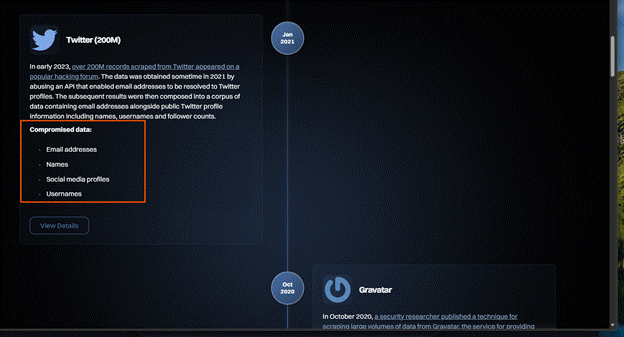
This is a free service that allows you to check if your email address was leaked in a data breach. It will provide details on what data breach it was leaked in and what data was leaked. This information is presented in a timeline starting with the latest and working its way back.
This is a valuable service that allows you to see what breach your information was leaked in, along with what information they have obtained.
When you click onto view details, it lists wat data was compromised and gives you a data breach overview. It also provides you with recommended actions that you can use.
How does this attack work
Credential stuffing attacks rely entirely on automation. Attackers take large lists of stolen usernames and passwords, usually obtained from previous data breaches, and feed them into a bot. The bot also has a target list, which is a catalogue of websites and services it should attempt to sign into. These typically include major email providers, social media platforms, shopping sites, banks, gaming services, cloud platforms, and other popular websites with login pages. Because these are widely used services, there’s a higher chance the victim has an account there. Target lists often contain hundreds of sites, and the bot simply cycles through them automatically.
Once the bot has your details, it begins testing your email and password combination across each site on the list. If a site responds with something equivalent to “this account doesn’t exist”, the bot drops that username for that site and moves on. Over time, the bot naturally filters out the sites where you don’t have an account, leaving only the ones where your username is valid.
For the sites where your account does exist, the bot then tests the passwords it has for you. If the password is incorrect, it moves on to the next one in its list. If none of the password’s work, the bot simply abandons that username for that site and moves on to the next victim in its dataset. It doesn’t waste time guessing, that would be brute force, not credential stuffing.
However, if the password does match, the bot immediately escalates its attack. Even though it cannot get into the account without multi‑factor authentication (MFA), the login attempt still triggers an MFA prompt on the real user’s device. At this point, the bot repeatedly attempts to sign in using the same valid credentials, causing a flood of MFA notifications. This is the moment users suddenly receive dozens of prompts and often panic, believing their account has already been hacked.
Once the bot discovers a valid username and password, the attacker’s goal becomes very simple, get you to approve just one MFA request. They know they can’t get into your account without that approval, so they rely on overwhelming you with constant notifications. The attacker is hoping you will eventually tap “Approve” out of frustration, confusion, or the belief that the prompt is legitimate. If you approve even once, the attacker’s device receives a valid authentication token, allowing them to sign in as you, often without needing your password or MFA again for a long period of time.
How the attacker’s bot behaves (from a programming perspective)
This section is for educational use only. It explains how the attack works so you can recognise it and protect yourself, not so anyone can recreate it.
The following pseudocode shows a simplified version of how a credential stuffing bot typically operates. It isn’t real code, just an outline of the logic these automated attacks follow.
while bot_is_running:
for each credential in combo_list:
# Stolen email + password pair from the breach dataset
email = credential.email
password = credential.password
# Loop through the list of websites the attacker wants to test
for each site in target_list:
response = attempt_login(site, email, password)
# Skip this site if the account doesn't exist here
if response == ACCOUNT_NOT_FOUND:
continue
# Skip to the next password if this one is incorrect
if response == PASSWORD_INCORRECT:
continue
# Trigger MFA fatigue if the password is correct but MFA blocks access
if response == MFA_REQUIRED:
spam_mfa(site, email, password)
continue
# If login succeeds, the attacker now has access to the account
if response == LOGIN_SUCCESS:
harvest_account(site, email)
continue
This isn’t an Artificial Intelligence (AI) system making decisions. It’s just a simple automated program. It loops through stolen data, follows basic “if this, then that” logic, and keeps running until it finds a password that works. There’s no thinking involved, only automation.
The attacker first imports the stolen user data into their program, along with a list of websites the bot should test. These are stored in arrays, which allow large lists of information to be grouped under a single variable. You can think of an array like a box full of items the program can pick from one by one.
Once the program starts running, it immediately enters a for each loop that cycles through every stolen credential in the list. Inside this loop, the bot uses a series of conditional statements to decide what to do next based on the website’s response.
The first conditional statement checks whether the email address exists on the website’s database. If the user doesn’t have an account there, the site returns an “account not found” error. The bot reads this response and simply moves on to the next site in the target list. It doesn’t retry or guess, it just skips ahead.
The next conditional statement checks whether the password is incorrect. If it is, the bot moves on to the next password it has for that email address. It keeps looping through the passwords in the dataset until it either finds a match or runs out of options.
The next conditional statement checks whether MFA has been triggered. If it has, the bot now knows the email and password combination is correct. At this point, it calls another function that repeatedly attempts to log in using the same credentials, which triggers a flood of MFA prompts on the victim’s phone. The attacker is hoping the user will eventually tap “Approve” by mistake.
The final conditional statement checks whether the login was successful. If it is, the bot now knows it has valid credentials for that account. It stores this information in a new array so the attacker can use it later, for example, to take over the account, steal data, or sell the credentials to other criminals. The bot then moves onto the next target.
In simple terms, the bot is just following a set of “if this happens, do that” rules, looping through stolen data until it finds a combination that works. Attackers often build these bots as simple Python scripts because Python makes automation easy and has libraries for handling web requests.
What happens if the attacker gains access to the account
During an MFA‑fatigue attack, many victims don’t realise they’ve granted access. When dozens of prompts appear, people often assume it’s a glitch or a legitimate request from one of their devices. Some tap “Approve” just to stop the notifications. But that single approval gives the attacker a valid authentication token on their own device, allowing them to sign in as you without needing your password or MFA again.
Once the attacker gains access to your account, they may do one or more of the following:
Replace your security details with theirs and hijack your account – They add their own email, phone number, or authenticator app, then remove yours. This locks you out completely and gives them long‑term control.
Export your personal information – This can include bank details, saved cards, messages, photos, documents, and anything stored in the account. This data can be used for fraud or identity theft.
Use your account to send phishing emails – Attackers often send malicious emails from a trusted account because recipients are more likely to open them. This spreads the attack to your contacts.
Lock you out and demand payment to get your account back – Some attackers hold accounts hostage, especially gaming, email, or social media accounts, and demand money for access.
Delete your files or threaten to publish them – Attackers may wipe your data or use sensitive information to blackmail you, threatening to leak it unless you pay.
Sell your personal information to other cybercriminals – Stolen data is valuable. Attackers often package and sell it on criminal marketplaces for others to exploit.
Sell your valid login credentials – If your account has value (such: as gaming purchases, subscriptions, or stored payment methods) attackers may sell the login details to someone else.
How to reduce or stop this attack from happening
When you start receiving unexpected Microsoft Authenticator prompts, the first thing you should do is deny every request. Never approve an MFA prompt you didn’t initiate.
The first thing to do is change your password to something completely different from anything you’ve used before.
While changing your password won’t stop the bot from continuing to try signing in, it does prevent the attacker from logging in manually if they already know your old password.
Keep Multifactor Authentication enabled & check security information
Do not turn off MFA. It is the only thing preventing the attacker from getting in.
While on the same page, check that your security information is up to date. Remove any old or unused methods such as:
old email addresses
old phone numbers
old security keys
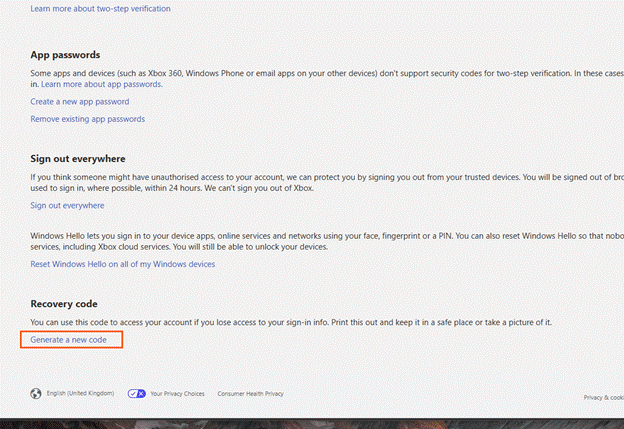
Generate a new Microsoft account recovery code (personal Microsoft accounts)
On a personal Microsoft account, you have the option to generate a recovery code to use for your account to use if you no longer have access to your security information and recovery methods.
On the security page, please scroll down to the bottom of the page.
Once at the bottom, please select “Generate a new code”
You will want to keep this in a safe place. If you do get hacked, you can use this code to recover your Microsoft account. Once you generate a new code, the previous code will no longer work.
Changing the primary alias for the Microsoft account
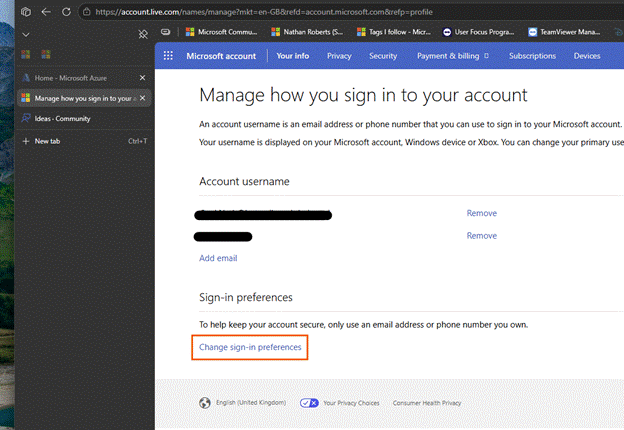
One effective way to stop the MFA spam is to change your primary alias which is the email address you use to sign in.
This works because the automated bot continues trying the old email address. When the bot attempts to sign in, Microsoft returns an error saying the account doesn’t exist. The bot then drops your email and moves on to the next target.
Changing your primary alias does not delete your mailbox or emails. It only changes the address you use to sign in.
Once you have signed into your account, you can add an email address to use when signing into your Microsoft account. You can then click onto the link to change sign in preferences.
Then select the new email you have added and de-select the previous email. Do not remove the email though, leave it on your account.
Preventing this attack from starting
A common question people ask is:
“Why can’t you just stop these attacks from happening in the first place”.
Unfortunately, in the digital world we live in today, our data is stored online across countless services. We use multiple websites every day for work, communication, entertainment, and shopping. While companies work tirelessly to prevent these attacks, and there is always more that can be done, we will never eliminate them completely.
Cyber criminals constantly look for new ways to bypass protections. As technology improves, so do their methods. We’ve already seen phishing attacks become more sophisticated, and new account takeover techniques appear regularly. The only way to stay ahead is to keep informed about the latest threats and understand how to protect your accounts.
The NCSC is a UK government organisation that publishes news, alerts, and statistics about cyber security. Keeping up with their updates helps you understand emerging threats and think proactively about your own account security.
The more we educate ourselves on the different methods we have for keeping our accounts safe, the more we can reduce our likelihood of being subjected to attacks.
Microsoft 365 subscriptions now allow you to change the subscription type
Microsoft appears to have made some welcome changes to how consumer Microsoft 365 subscriptions work. Previously, if someone wanted to move from Microsoft 365 Personal to Microsoft 365 Family, they first had to turn off recurring billing or cancel the subscription entirely. Only then could they purchase the plan they wanted.
This process frustrated many users, especially because refunds for unused time were not always guaranteed. However, while helping a user on a recent Microsoft Q&A thread, I noticed that this behaviour has changed. Users can now switch their Microsoft 365 plan directly from the Subscriptions section of the Microsoft account overview page. No cancellation or waiting period required.
How to change your Microsoft 365 subscription
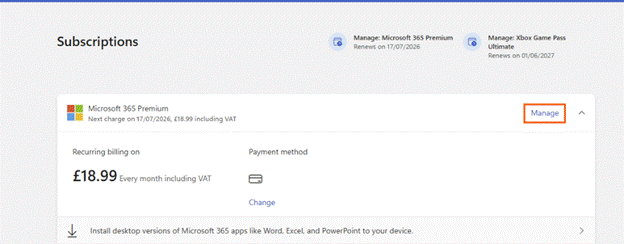
To change your Microsoft 365 subscription plan, please sign into your Microsoft account on the services page: Microsoft account | Subscriptions
Once you have signed into your Microsoft account, you will see all your subscriptions connected with your Microsoft account. If you navigate to your Microsoft 365 subscription, then click “Manage” on the right-hand side of the tile.
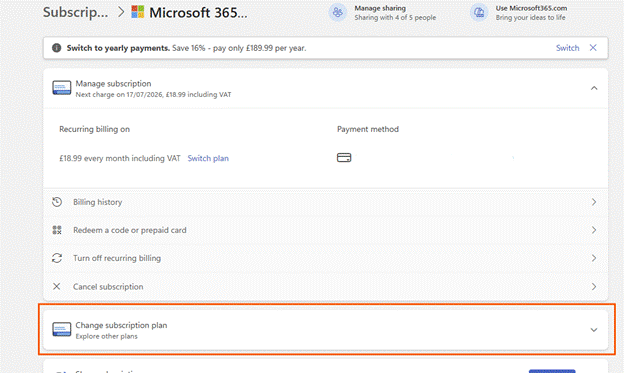
This will take you to the subscription details page where you can view your subscription details and manage the subscription. You will want to scroll down until you see “Change subscription plan”
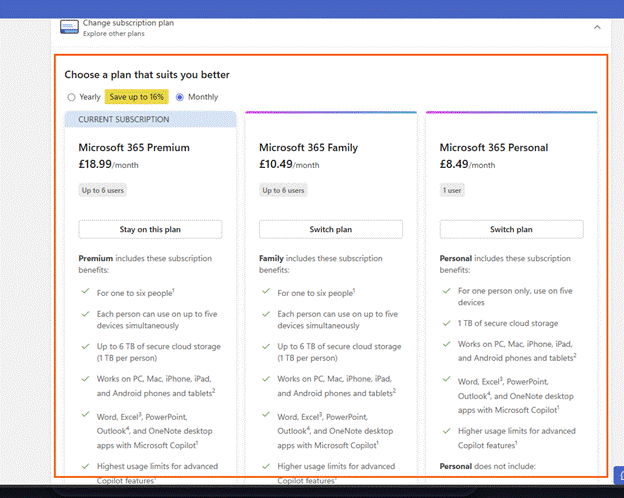
When you click onto that tile, it will show you the different plans you can choose from.
You can toggle between yearly or monthly payment. Each plan provides you with the cost per month/year and what each plan includes. You can choose which plan you wish to choose to by clicking onto “Switch plan”
From experience from switching from Microsoft 365 Family to Microsoft 365 Premium, the process is quick. You will get an email confirming your choice and payment was taken the same day for the subscription, which changed my billing date from the 27th of the month to the 17th of the month.
As I couldn’t find any announcement about this, from Microsoft, I am unsure if this is only region specific or specific to certain subscriptions. Despite this, it is a welcomed change.
Phishing isn’t a niche cybercrime anymore; it’s a daily flood. An estimated 3.4 billion phishing emails are sent every day (According to aggregated industry data from Keepnet/VIPRE (2026)), targeting everyone from large organisations to everyday users. These messages are crafted to look legitimate, often mimicking trusted brands or colleagues, with the goal of tricking someone into clicking a link or revealing sensitive information. In this post, I’ll walk you through what phishing looks like in the real world and how to recognise the red flags before it’s too late.
What is a phishing?
Phishing is a common technique used by attackers and is a form of social engineering. It involves sending emails, often in bulk, designed to trick users into revealing personal information. This might happen by replying directly to the email or by clicking links that lead to fake websites created to harvest sensitive details such as login credentials, bank information, or personal data.
These emails often look genuine and may appear to come from trusted organisations such as Microsoft, Google, Amazon, or your bank. But it doesn’t stop there. Attackers may also pose as hackers claiming to have compromising information about you, hoping fear or urgency will push you into responding to their demands.
Depending on the attacker’s goal, phishing emails may also contain malware or viruses. In some cases, simply clicking a link or opening an attachment can trigger malicious software to install in the background without the user realising.
How does phishing work
The term phishing comes from the word fishing and the comparison is intentional. When fishing, you cast a line with bait, hoping a fish will bite. Once it does, the fish is caught, and the person fishing reels it in.
Phishing attacks work the same way. Attackers send the same email to thousands, sometimes millions, of people at once. This is their ‘bait’. They only need a small number of recipients to click a link or open an attachment for the attack to succeed.
Once you click the link and enter your details on the fake site, the attacker captures that information and stores it in a database they control. With your credentials, they can access your account without your knowledge.
From there, several things can happen:
They may lock you out of your own account by changing password and security settings
If you’ve entered bank or payment information, they may attempt to make purchases or withdraw funds
They may sell your details to other criminals online, where stolen data is traded and reused in further attacks
How do they get your email address?
This is often a question I get asked when helping people who have fallen for these attacks.
Attackers will not usually guess your email address or get AI to guess email combinations. This takes time from them and is not guaranteed to go to an actual person. Instead, they will use email addresses that have already been exposed through data breaches.
Web developers and businesses have a responsibility to secure the data they collect and store, whether they collect this data in person or online through their website. When they are storing this data in person or online, they must ensure it is secure. When a website or service is compromised, attackers can extract personal information such as:
Email addresses
Usernames
Passwords
Any other information stored on their systems
Phishing is one of the most common ways that hackers will use to breach these systems and extract this data – often without the person even knowing about it until it is too late.
Once data has been stolen, it is extracted and placed onto a database where other cybercriminals can use this data at a cost. These databases are huge with millions of email addresses that have been obtained through sources such as:
Data breaches – when a company you’ve signed up with is hacked
Leaked marketing lists – poorly secured mailing lists being stolen
Credential dumps – collections of stolen usernames and passwords shared online
Scraping public sites – attackers collecting emails from social media, forums, or websites
Old accounts you’ve forgotten about – even inactive accounts can be breached
Once your email address is on these databases, it is circulated to other attackers. Removing your email address, or personal information, from these databases can be nearly impossible due to how many people have it and how frequently it is shared.
Who do phishing attacks target?
Cybercriminals don’t just send phishing attacks to individuals. They send phishing attacks to organisations. Everyone is targeted.
Business users
Business users will receive a lot of phishing emails from attackers, especially when their email addresses are publicly listed on the business website. Having email addresses listed on the website makes them a target as they have their job description and their email address that they can use to tailor their phishing attack to them and their role.
Business employees
The average business employee are common targets, even if they have no administrator access to the system or they don’t handle sensitive data. Attackers will see them as a valuable entry point into the system because these individuals will often be overlooked because of their role or level of access. Attackers will see this as a golden opportunity as a compromised account can act as a ‘back door’ into the organisation’s system.
This can be especially risky when:
Employees haven’t received training around phishing attacks
Their mailbox accepts emails from outside the organisation
They are unaware of the common red flags with phishing emails
They are not confidant in reporting suspicious emails
Even if they are an average employee with no administrator access to critical systems, they are a good target as it allows them access through a ‘back door’ into the company’s systems that they can exploit.
Attackers will often craft their emails to look like they are genuine emails from, but not limited to:
Suppliers
Customers
Colleagues
Training providers offering free or paid training courses for their role
A service alert from ‘Microsoft’ or ‘Google’
The more these emails look genuine, more likely it is for someone to fall for it.
IT Administrators & developers
Attackers will target IT administrators and developers because of the high level of access they have across systems. However, they will know that these individuals are generally more aware of phishing tactics, so the attacks aimed at them tend to be more sophisticated.
Examples of phishing attacks they can face are, but not limited to:
Service alert from ‘Microsoft’, ‘Google’, ‘Web hosting company’
Marketing emails from other service providers,
Messages impersonating colleagues or internal systems
If an attacker is to successfully compromise an administrator or developer account, they will gain access to critical systems, sensitive data as well as the ability to cause significant disruption to the company – from data extraction to system wide shutdowns.
So, as you can see, businesses are targeted by phishing attacks – not just your IT administrators and developers, but everyone within the organisation. When you step into the mind of an attacker, you realise the average employee is the better target. Even though they don’t have access to critical systems or may not have access to user data their account and device can still provide a valuable way in for the attacker.
When the WannaCry malware crippled the NHS. It demonstrated that just one small vulnerability on a network can have a huge impact throughout the entire organisation. Although the malware wasn’t delivered through an email, investigations later revealed that it exploited a flaw in outdated operating systems on the network which allowed it to jump from computer to computer, encrypting files as it spread.
This is why it is vital that everyone has training on phishing and is aware of current phishing tactics. People should know how to protect themselves from this attack along with other cybersecurity risks they can be exposed to when using technology.
Individual users
Individual users are also heavily targeted by phishing emails, especially when their email addresses have been leaked in previous data breaches. The type of phishing emails you receive will often depend on the kind of data that was exposed in a breach- for example, whether attackers just obtained your email address or other information such as your name, address, age, phone number or login details.
Unlike phishing attacks aimed at businesses, these emails are usually less personalised. Attackers often rely on broad, generic messages designed to catch as many people as possible with one simple goal- to catch as many people as possible with their bait.
Average user
The average user is the most common targets for phishing attacks because that most people don’t receive formal cybersecurity training. Attackers know this and use this to their advantage. They understand that a typical home user may not recognise the subtle red flags that make phishing emails stand out. They also know that most users:
Reuse passwords across multiple accounts
Rely on a single email address for everything they do online (e.g. shopping, banking, social media sites)
Act quickly when an email triggers fear, urgency or curiosity
May not have multi-factor authentication enabled or understand what this is
May not be aware of tools to help them keep their accounts protected online
May not keep their devices fully updated
Because of this, attackers will typically send broad, generic, phishing emails designed to catch as many people as possible. Examples of the types of phishing emails are, but not limited to:
Delivery scams
Bank alerts
Subscription renewals
Fake invoices from online shops
Fake emails implying your account has been compromised
These emails are deliberately structured to provoke an emotional reaction- usually fear or urgency. Attackers know that if they can get your heart racing, you’re more likely to act without thinking. In that moment, it becomes easy to hand over personal details or click a malicious link without noticing the red flags, compromising your account and device in a matter of seconds.
Children
Children and young people are targeted because of how vulnerable they are online. Even though they spend more time online, they are often more trusting then adults. Attackers exploit this- they know that children:
May not understand what phishing is
Are more trusting of messages that look ‘official’
May click onto links without thinking about what they are doing
May not recognise fake login pages
Often use shared family devices
Often use the same password for all their accounts
May not understand what they are handing over and how this can make them vulnerable
Armed with this knowledge, attackers send phishing emails specifically designed to appeal to children. The common theme includes, but not limited to:
Fake gaming rewards or ‘free coins/robux’
Fake login prompts for platforms (e.g. Xbox, Roblox, Fortnite, Minecraft)
Direct them to ‘official’ servers on Discord for games (e.g. Official Minecraft server) that they need to sign up for using their Microsoft account
Fake ‘parental permission required’ messages
Fake emails from ‘school e-learning’ platforms
Attackers know that by gearing the emails to look like genuine emails from well-known games and services, children are far more likely to fall for them. They understand that children may share personal information without realising the consequences- potentially putting themselves and families at risk in the future.
Elderly & vulnerable people
Elderly & vulnerable people are among the most heavily targeted groups. Attackers know that people in this group are generally:
Not confident with computers and technology
Unfamiliar with modern scams and phishing strategies
More trusting in authority
Prone to act on fear-based messaging
Attackers know that elderly and vulnerable people find it difficult to distinguish between genuine emails and fake ones. They understand that this group are less likely to check for red flags such as suspicious sender addresses, unusual links or poor grammar. This allows attackers to send emails such as:
Bank account warnings,
Medical or prescription notifications
TV licence reminders
Utility bill issues – The pay now notifications
HMRC tax refunds or penalties
Threats to close your account
Tech support alerts claiming their device or account has been compromised or infected with a virus/malware
The emails they send are designed in a way to create fear or urgency. This pushes the user to act quickly without verifying the message or asking questions around why they received this email. Attackers rely on the fact that elderly and vulnerable people are not your typical computer user. This is why attackers will focus on images, logos and the authoritative language used within the email, giving the email a genuine look which makes the scam appear legitimate.
How to spot phishing attempts – the red flags to look out for
When supporting people in person, on the Microsoft Q&A Community and other online communities. I often find that a wide range of people have fallen victim to phishing attacks. Years ago, phishing emails were much easier to spot – the spelling mistakes stood out, grammar was poor and the formatting looked suspicious. However, modern phishing attacks have become far more sophisticated and harder to detect. People who were once confident they wouldn’t fall for a scam are now being caught out by emails that look almost identical to genuine emails.
Because of this, we need to be cautious on how we approach emails that land in our inbox. Attackers rely on us acting quickly and emotionally as this results in us to act without thinking. To combat this, we need to slow down.
Read the entire email first
At this stage, you have most likely started reading the subject line or the first couple of sentences within the emails. Your heart might be frantically racing- you’ve got a hundred questions racing through your head- you probably thinking ‘great how am I going to pay the next bill’, ‘what have I purchased’, ‘what’s going to happen to my account’ or ‘this is amazing. Lifetime opportunity. Where do I sign up!’.
Don’t stop there. This is what they want you to do.
This is exactly the emotional response that makes you vulnerable and turns you into their next victim.
Instead, keep reading the email they have sent you. Once you have read it, take a deep breath and walk away from it for a few minutes if needed. Then come back to the email again with a calmer mindset. When you come back and read the email again, you are starting to unpick it and identifying the red flags that you missed previously.
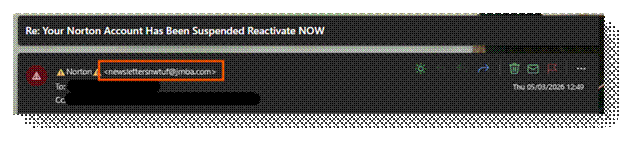
The email address
The first thing I check is the email address the email has come from. If their full address doesn’t show, hover your mouse cursor over the sender’s name. This will reveal the actual email address. This will make the email address show. Once you see the full email address being used, pay close attention to the domain they are using.
In the example above, you can see the email claims to be from Norton, warning me that my account has been suspended because I haven’t paid my latest bill. If this email was genuine, you would expect that the email would come from ‘@norton.com’. Instead, this email is from ‘@jmba.com’ which has nothing to do with Norton. This alone is a major red flag.
Some phishing emails make this obvious with completely unrelated domains. Others are far more cunning. I’ve seen phishing emails pretending to be from Microsoft using a domain like ‘@mlcrosoft.com’. If you look closely, the ‘i’ in Microsoft has been changed to ‘l’. At a quick glance, this can be missed. Especially by computer savvy people when they read this quickly. Now if you were reacting emotionally, you would have thought this was genuine.
The use of emojis in the email?
The next thing to check is the use of emojis in the subject and the sender’s display name. Most phishing emails I have received recently have started to include emojis next to the sender’s name to grab your attention and trigger an emotional response. Some examples of these are:
⚠️ – Warning triangle
‼️ – Double exclamation marks
🚨 – Alert
🔒- Padlock
These symbols are chosen deliberately because they create a sense of urgency or danger when you first glance at them in your inbox.
Legitimate companies do not use emojis within the sender’s name. They use their official company name or the name of the department contacting you. The message will be clear and professional.
So, if you notice emojis in the sender’s name, the chances are you are looking at a phishing email. This is another red flag within phishing emails.
Are you expecting this email?
Now you have read the email and have come back with a clear head. You have looked at the email address but are still unsure. The next to ask yourself is:
Am I expecting this email?
When I received the email from ‘Norton’ informing me that my account has been suspended due to me not paying for my subscription, my immediate reaction was ‘I don’t use Norton’.
The answer to that simple, but effective, question told me that this was a phishing attempt without needing to look further at the email. If I don’t use their services, I am not expecting emails from Norton about their services, or about my account been suspended.
If the email address is unexpected. There is a high chance that it a phishing email. Companies won’t email you out of nowhere. Companies will only email you if you are:
A customer
Have signed up for their services.
Have opted in to receive communication about their services
I don’t use Norton and have never signed up for their services. They won’t have my email address. So how could they send me account related emails for their service?
They can’t.
That alone is a major red flag. A simple, but powerful, question can be all you need to keep yourself safe online and in person.
The language they use within the subject and body of the email
If you are still unsure about the email and you have checked whether you were expecting the email. The next thing you should look at is the language used in the subject line and the body of the message.
Phishing emails will often rely on emotional manipulation. Attackers want you to react quickly- not think logically. To achieve this, they use language designed to trigger an emotional response such as fear, urgency, curiosity or excitement. This is why they often use phrases like:
‘Your account has been suspended’
‘Payment failed – Update payment details now’
‘Unusual activity detected’
‘Parcel can’t be delivered’
‘Final warning …. ‘
‘Congratulations! You’ve won…’
These phrases have been purposely crafted to provoke an emotional reaction. Attackers know that when your emotions take over, they have a bigger chance of success. When you’re panicking or rushing, you’re far less likely to notice any red flags in the email.
Subject lines are usually short and direct because it grabs your attention and triggers that emotional response, they are after. The phrases above allow them to do this. Hooking you into the email, all while making your emotions skyrocket ready for the main part of the message.
When you do start to read the body of the email. Phishing emails will continue the emotional pressure by using:
Excessive use of urgent language (e.g. ‘react NOW!’, ‘Urgent action required’, ‘Take action’)
Threatening phrases (e.g. ‘Your account will be closed today’, ‘Your data will be lost forever after today’, ‘You have 24 hours to respond before I share your data’)
Poor grammar or unnatural phrasing
Generic greetings (e.g. ‘Dear customer’, ‘Hello user’, ‘Hello followed with the first part of your email address)
Inconsistent tone
While the subject line is the initial trigger for an emotional response, the body of the email will keep the pressure going with the language they use. This is why, when you look at phishing emails, they use threatening phrases they know will keep your emotions high and your rational thinking low.
Once you have a calmer mindset, these clues stand out more. When you compare them to genuine emails you receive from companies like Microsoft, your bank, or other services. You notice those messages are consistent with their tone, the language is professional, and they don’t threaten you with immediate consequences. Instead, they use phrases like, ‘Please update your payment information on your account.
Genuine companies want to notify you that something is wrong with your account or payment method, not frighten you. They don’t expect a reaction instantly. Their systems are designed to send reminders long before they act on the account because they want to keep you as a customer.
This is a big difference between a genuine company and an attacker sending a phishing email. Companies want you to stay with them and maintain your trust. Attackers want an instant reaction: act now, think later.
Links in the email
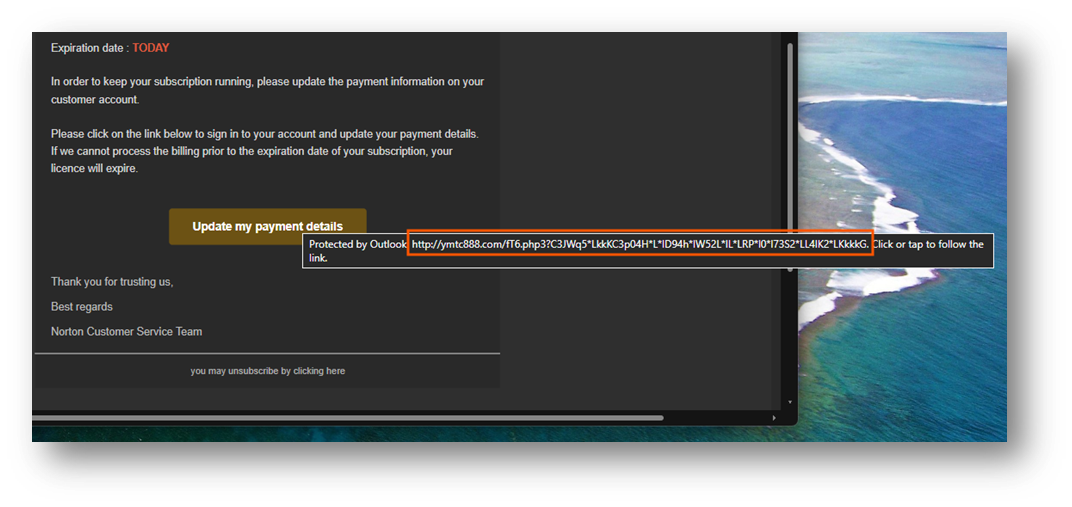
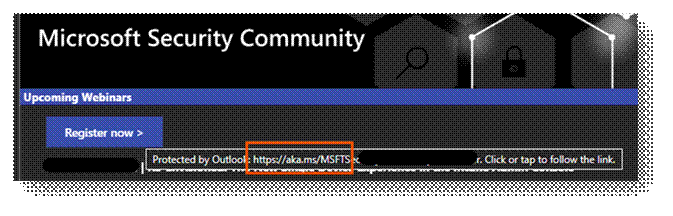
The next thing you should look out for is the links within the email. Not just the link text that is displayed, but the actual web address behind the link. To do this, hover your mouse curser over the link. This will reveal the actual address behind the link in a tooltip within your email client. In Outlook, this is under the link. In other email clients, this could be at the bottom of the client.
This allows you to see exactly where the link is going to direct you.
In the example above, the link looks like it is going to an official Norton page where you can update your payment information. However, when you hover over the link the tooltip shows the link directs to an unrelated website. This is a major red flag with phishing emails.
Attackers set up fake sites that mimic the real site. At first glance, you think you are signing into an official site or service. You will notice the page has the company’s logo, font style, wording and page colours are all copied to trick you into thinking you are on the official website.
What makes these pages more convincing at the first glance is the URL they choose to use. As people skim read the URL in the address bar, they use this to their advantage. This means attackers will include brand names inside the URL which help deceive unsuspecting users into the bait. Examples I have noticed in the past include:
mlcrosoft.com
support.microsoft.support.com
support.microsoft.co.uk
microsoftonlinesupport.com
These look like official URL sites but are fake. People see the company name when they skim read and see the company name and think it is legit. The key part you should focus on in the URL is the name that comes directly before the ‘.com’, ‘.co.uk’ etc… This is the domain name. When you know where the domain name is, you know where to look to find the flags.
When you look at more sophisticated phishing emails, you’ll often find shortened URLs embedded inside the message body. Attackers use these because they hide the true destination of the link, making the trick of hovering your mouse over the link redundant. The only way you can see where this link takes you is by clicking onto the link and following it through- which is what the attackers want you to do.
What makes this even more problematic is that legitimate companies do sometimes use shortened URLs in their emails. For example, Microsoft use the ‘aka.ms/….’ link in their emails. Especially emails such as:
Marketing emails,
Event sign-ups,
Support documentation links
In my example above, you can see the ‘aka.ms/…’ link within the email. While on emails notifying me about changes with my account, they don’t use shortened URLs. This is something to keep in mind when you receive emails with links. If the email is unexpected, asking you to act urgently, or pressure you to update payment details, then never trust the shortened URL. Treat it as a red flag.
The advice in the next section will guide you through what to do instead, even with genuine emails, to ensure you keep yourself safe.
Don’t click onto the links. Do this instead
After you have read the email, looked for the red flags and digested what it is about. I always take a step back and think
‘What is the purpose of this email?’
When you think about it. The purpose of emails is to inform you that:
Something wrong with your account
Something has been updated
There are offers in the store
There are upcoming events
What has happened recently with the product/service (newsletters)
The key word here is to inform.
It is extremely rare I will ever click onto any links within the email. Especially if the message claims there is a problem with my account, package can’t be delivered.
Instead, I open a web browser and go directly to the official website myself. This is what you should do too.
Here are some example scenarios:
Received an email telling you that your security information has been changed on your Microsoft account?
If your account is frozen, it will display a message on why and how to unfreeze your account
Why this works
Attackers rely on us clicking the links they provide without thinking about it. Sophisticated phishing attempts often mimic real messages perfectly- right down to the branding, layout, tone, everything you would expect in a genuine email.
By navigating to the official website, you remove the attacker’s biggest weapon they have, you remove the control over where the link takes you.
Doing this, protects you against:
Fake login pages
Malicious redirections to malicious sites
Shortened URLs that blindly direct you to malicious sites
Spoofed domains
Hidden tracking links
Banks were the first to push this advice- and for a good reason. Tech savvy users rarely click the links inside the email, so companies now invest heavily in showing important alerts inside your account, not just in your inbox.
Going directly to the official site is one of the strongest, most effective, defences you have. It works every time.
Phishing isn’t going away, and attackers are becoming more sophisticated — some even using AI to craft convincing messages. That’s why we need to adjust our habits and think more logically. By slowing down, staying sceptical, and always visiting official websites directly instead of clicking email links, we give ourselves one of the strongest defences available. These simple habits keep us safe online.
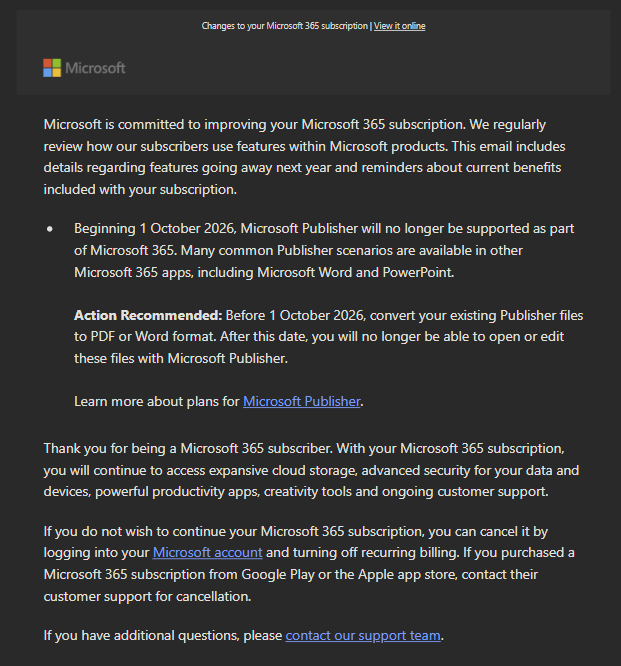
Microsoft has begun emailing Microsoft 365 subscribers to inform them that Microsoft Publisher will be discontinued on 1st October 2026. This marks the end of support for the desktop‑publishing app after 35 years. In this post, we’ll look at why Microsoft is retiring Publisher, what will happen after the end‑of‑support date, and the best alternatives for anyone who still relies on Publisher today.
What is Microsoft Publisher?
Microsoft Publisher was first released back in 1991. Now, in October 2026, it will be discontinued after 35 years. Microsoft Publisher was first introduced as a program within the Microsoft Office family that allowed people to create projects such as flyers, brochures, newsletters, menus, labels and basic web pages.
Publisher had templates that allowed people to quickly make documents with ease without having to pay for expensive software to achieve the same job. This was beneficial for people who worked in small businesses, schools and community groups. It allowed anyone of any ability to create professional looking documents.
Why Microsoft is ending support for Publisher
Microsoft have since created tools such as Microsoft Designer and Clipchamp that allows people to create professional documents. These tools are cloud based and do more then what Publisher can do. Other Microsoft apps such as Word and PowerPoint allow people to do most of what they could do in Publisher. Microsoft Word allows you to create labels and leaflets and have templates available for people to use.
What will happen after October 2026
After October 2026, Microsoft Publisher will not be included in the Microsoft 365 download. This means you will not be able to download it onto your computer/device. If you have Microsoft Publisher as a standalone copy such as Microsoft Office 2021, then you should be able to install Publisher and continue using it even though it is not supported. However, Microsoft support may not be able to help you if you run into any problems with Publisher after it’s end of support date.
What can I do with my Publisher files
If you want to keep your Publisher files, Microsoft recommends you convert these files into .pdf files. Once you have done this, you can open them in Microsoft Word and Word will convert them from .pdf to .docx files. This way, you can keep those files and continue editing them when you need to make changes to them.
What are my alternatives to Publisher
Depending on what you are wanting to do will depend on what program/app is available to you. Most of what you can do in Publisher can be done in Microsoft Word or PowerPoint.
Microsoft alternatives
Tool
Best For
Microsoft Designer
Flyers, posters, social media graphics
PowerPoint
Brochures, menus, newsletters
Word
Text heavy documents
Clipchamp
Video based content
Web based alternatives (non-Microsoft products)
Tool
Strengths
Canva
Huge template library, easy drag‑and‑drop, great for small businesses
Adobe Express
Clean templates, integrates with Adobe ecosystem
VistaCreate
Marketing‑focused templates and branding tools
Microsoft Copilot and the use of AI
Microsoft is investing more into Copilot. The fact you can ask Copilot to create you a poster and it will create it for you is remarkable. Microsoft has Office Agent, which is a tool online, here: Office Agent, where you can ask it to create you a presentation, word documents and more. All you have to do is tell it what you are wanting to create, and it will create it for you.
The Microsoft Office page was redesigned last year. Now when you sign into your Microsoft account, you are landing straight into the M365 Copilot chat. You can then type what you are after in the box and Copilot will begin creating what you are looking for. You can try this out by signing into your Microsoft account here: Chat | M365 Copilot
Sometimes you may come across a purchase that you haven’t made. Now, Microsoft has made it easy for you to view purchases made using your bank details on the Microsoft & Xbox store. This article will guide you through the process where you can investigate where these charges have come through and what Microsoft account has made these charges with your bank information.
You will need to sign into your Microsoft account. Once you have done, you should see your payment methods on your account along with your Microsoft account balance. When the page loads, you should see a list of transactions in the past 60 days that have used your payment details.
Please can you click onto the hyperlink “Investigate“
This will open a side panel on the right-hand side of your screen which will display your bank details that are stored on your account and ask for a CVV code.
Please select the right card where money has been taken out of your account on. Then enter the CVV code that is on the back of the card. Once you have done this, please click onto submit.
This will load up the recent transactions for that card. This will include transactions from other Microsoft accounts that have used your bank details too.
Please click onto the blue arrow facing to the right to view more information about the charge.
This will bring up details about this charge, including part of the account it has been linked to. You can use this to sign into the account and cancel the subscription or request a refund.
Microsoft PowerPoint allows you to use subtitles when you are presenting your presentation. This setting is powered by Microsoft’s speech service. You can translate what you are saying into another language. This article will walk you through how to start using subtitles in PowerPoint online and the desktop app.
Before you enable this feature, you must have a microphone connected to the computer.
Subtitles in Microsoft PowerPoint desktop
In the desktop app there seems to be more options with how the text is displayed compared to the online version. The desktop app allows you to use the Windows settings to customize the font and the font size.
Activating this feature
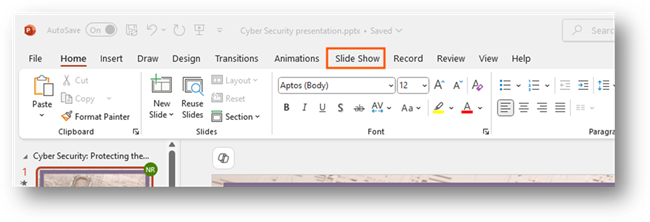
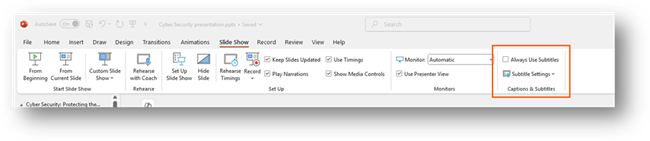
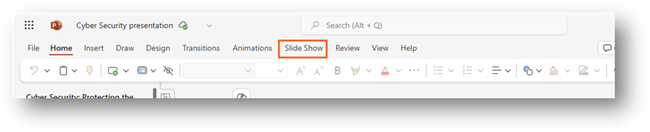
When you open your presentation, you will want to go to the tab Slide Show on your ribbon.
You will see options for your slide show that you can customize. You want to go to the section Captions & Subtitles on the far-right side.
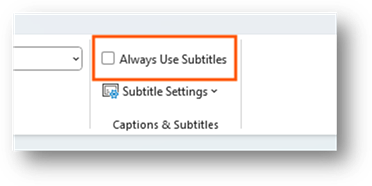
You will be able to see a check box that says, “Always Use Subtitles” and an option under that that says, “Subtitle Settings”. To enable the subtitles for the presentation, you can tick this box.
Once you have ticked this option, it will save it. So, when you go to present, it will display subtitles on your presentation when you speak. To turn off this feature, you will need to untick this box.
Subtitle settings
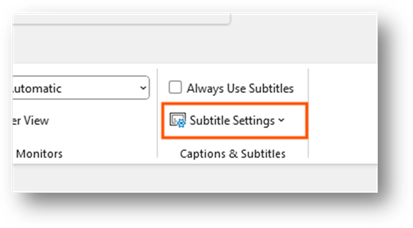
You can customize the settings for the subtitles. This allows you to do things like change the language or change where they are displayed when presenting. It is a way for you to adjust the settings for your audience.
The settings option is found directly under the option to always use subtitles.
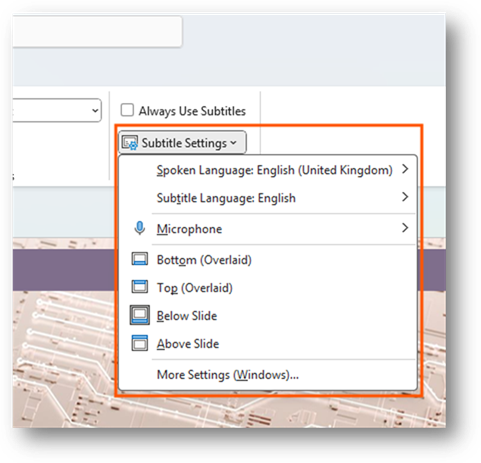
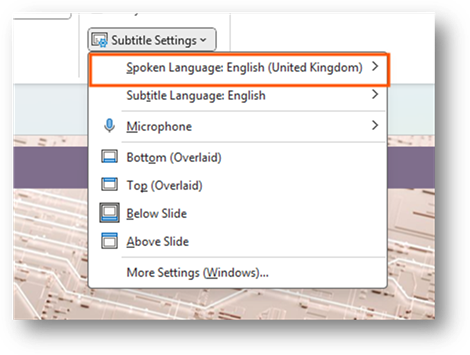
When you click onto this option, it will display a drop-down menu that displays a list of options.
Changing the language, you are speaking
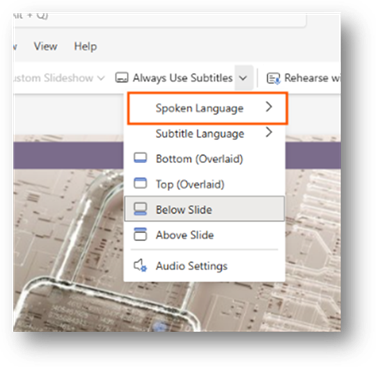
You can choose the language you are speaking in PowerPoint. To do this, you want to click onto the option “Spoken Language: …”.
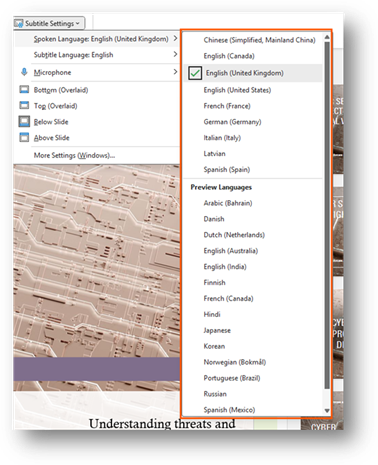
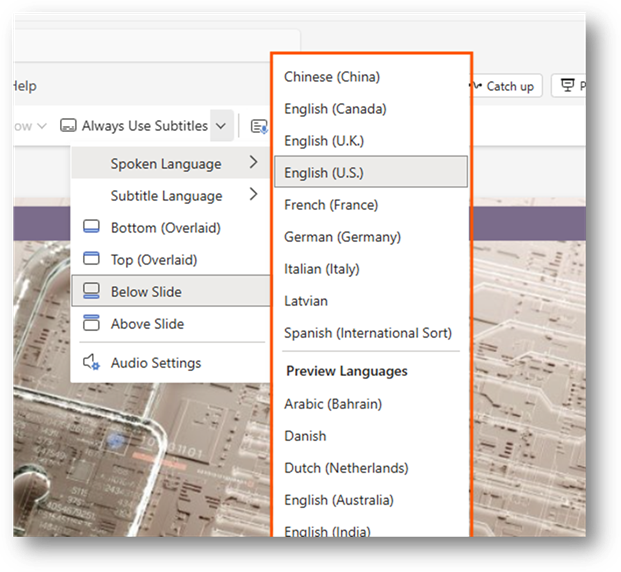
When you click onto this, it will display a list of languages you can choose from.
While there may be a language that isn’t there, Microsoft may choose to add this language in the future. Once you have found a language, please click on it to choose it. The menu will close.
By default, it will be set to the default language that is set in Microsoft 365. The preview languages are being tested. This means that they may not work as expected.
Changing language displayed
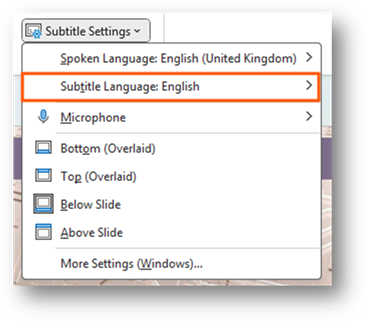
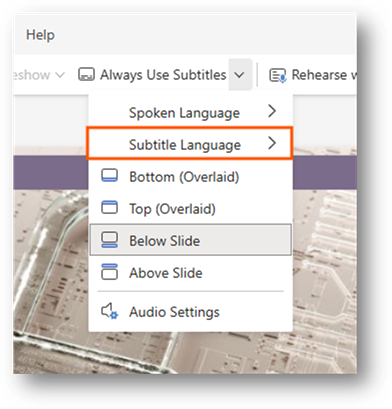
You can change the language the subtitles will be displayed in. By default, they will be set to your default language. To change the language, you will need to click onto the option, “Subtitle Language: …”
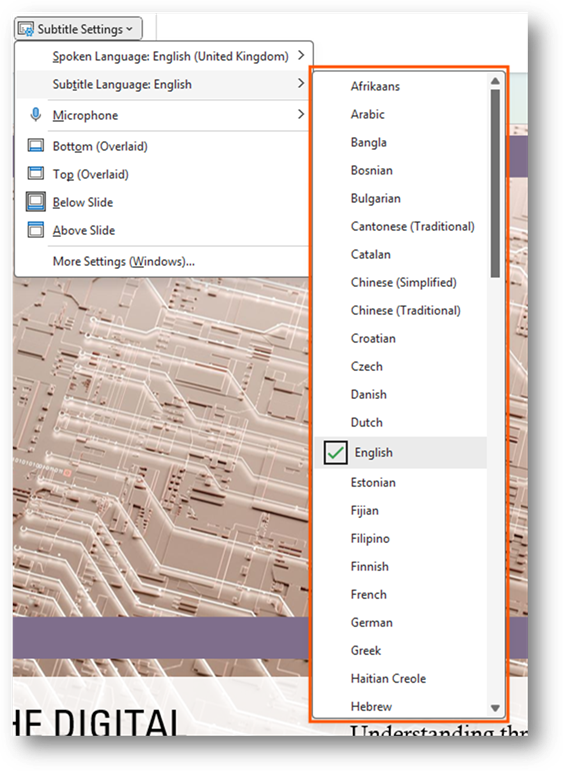
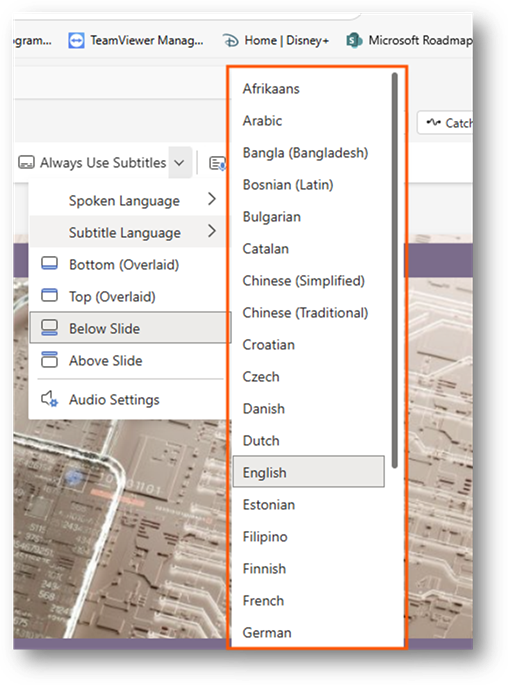
When you click onto this option, you it will display a list of languages you can choose from.
Once you have found the language you are wanting to choose. Please click onto the language to select it. This will close the menu for you.
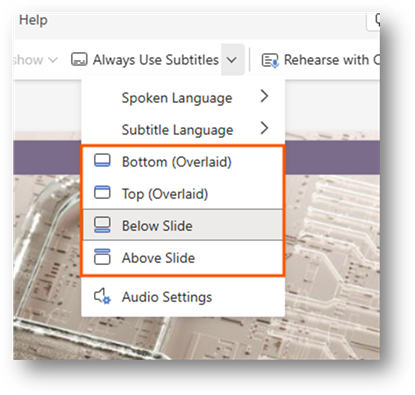
Position of text
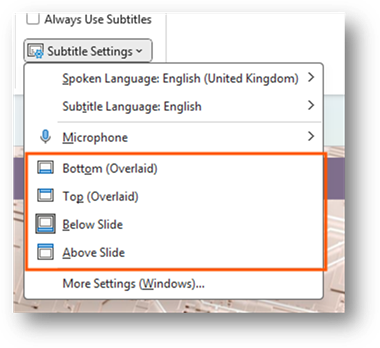
You can choose where the subtitle will display on the presentation. This option can be found under the microphone setting.
You have four options to choose from. By default, it will display the subtitles at the bottom with an overlay. Once you select an option, the menu will close and save the option.
More windows settings
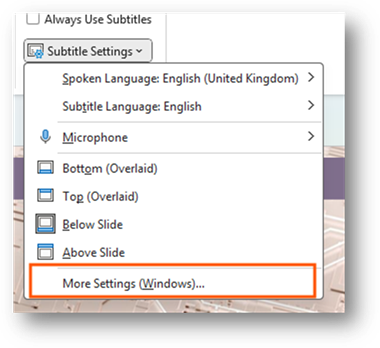
There are more settings that are built into Windows 11. You can access these settings by clicking onto the more settings option at the bottom of the menu.
The more settings option will open the Settings app for Windows where you can see settings for live captions on Windows.
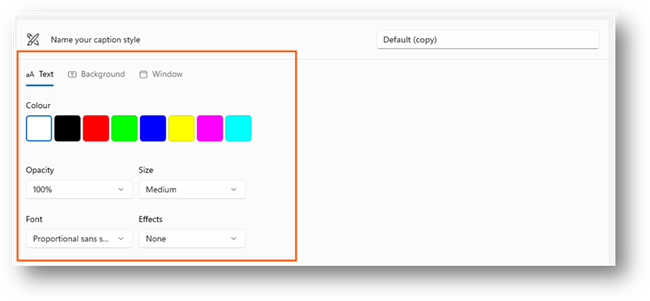
You will be able to adjust the style of the caption when displayed. This can be what colour the overlay is and what font and what the font size is. These are all located in the caption style option on the settings page.
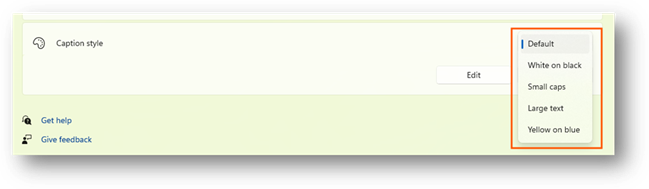
When you click onto the default option, it will list other options that you can choose from.
The options it provides you will be in a list.
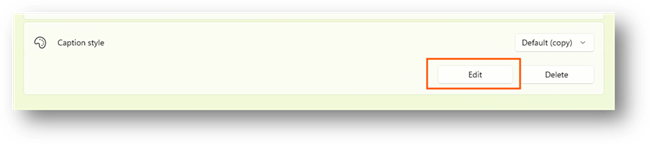
Once you click onto the option you want, the list will close, and the option will be applied on all apps in Windows. You can edit the style by clicking onto the edit option.
This will open the style options where you can customize the text and background colour the text is put on.
Once you change anything, it will automatically apply these settings to the style. If the style is selected, it will display the changes throughout Windows. Once you have finished, close the Settings app, and navigate back to your PowerPoint presentation.
Subtitles in Microsoft PowerPoint online
If you are using the online version of PowerPoint, you do have the option to enable subtitles over your presentation. You will notice that there aren’t many options compared to the desktop version of PowerPoint.
Activating this feature
When you have opened your PowerPoint on a web browser, please navigate to Slide Show on the ribbon.
When you have selected the slide show option, you will see the options for the presentation when it is presentation mode.
Along the menu bar, you will see an option called “Always Use Subtitles”
To enable subtitles, you must click onto the option which will highlight the button to show this is enabled.
Once enabled, you will be able to start your presentation. When you start speaking, the subtitles will appear on your screen. To disable subtitles, just click onto the button again. This will return the colour of the button back to white and will disable the subtitles on your presentation.
Enabling your microphone
By default, the browser will block the web app/web page from accessing hardware on your PC. This will include hardware such as your microphone and camera. This means you must enable the web app/website to access your microphone.
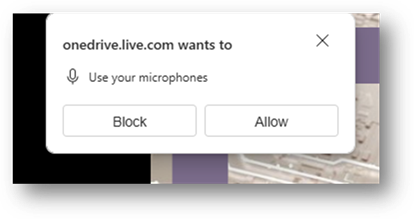
When you connect your microphone to the computer or go to present, it should request access to your microphone.
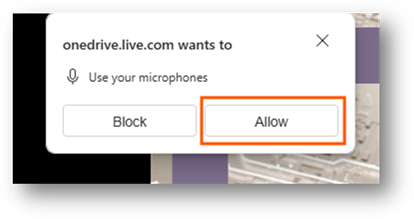
If this request appears, please click onto allow
What happens if I don’t get a request from the website/web app?
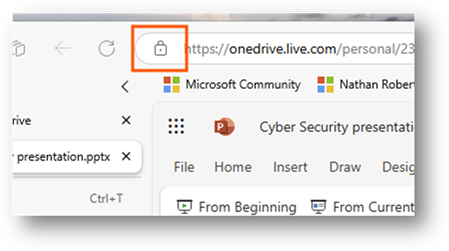
If this doesn’t appear, please click onto the padlock icon on your address bar at the left-hand side of the URL.
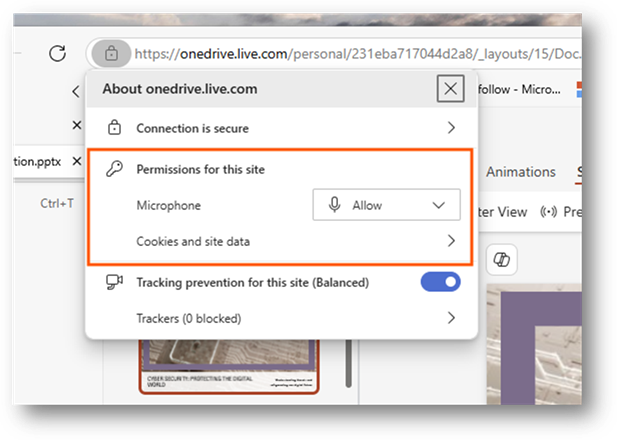
This will produce a drop-down menu showing information about the site. One of the options will be permissions for the site.
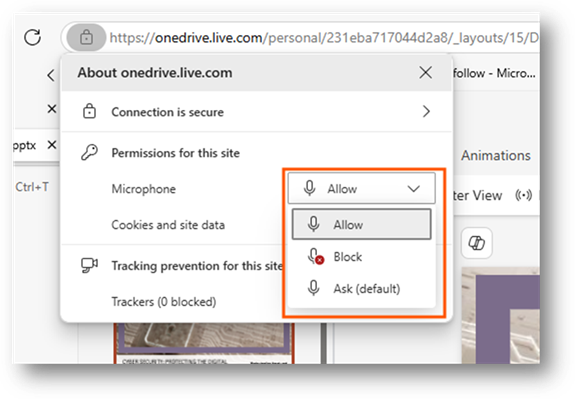
Please make sure that the microphone is set to allow. If it is blocked, please click onto the drop-down option for the microphone and change it to allow.
Once this setting has been changed, please refresh the site by pressing F5 on your keyboard or the refresh button on your web browser.
Subtitle settings
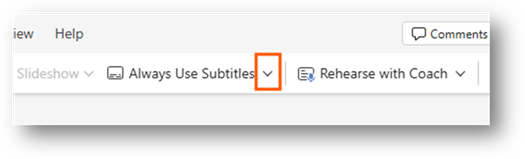
To access the subtitle settings, you will need to click onto the arrow pointing down on the right-hand side of the option to enable subtitles.
Once you click onto this button, the setting will display on a drop-down menu.
Changing the language, you are speaking
You can change the language you are speaking in PowerPoint. To do this, please click onto the setting called “Spoken language”.
This will expand a drop-down menu at the right-hand side showing a list of languages to choose from.
You can click onto a language you are going to be speaking in. This will save to your profile. By default, it will be set to the default language PowerPoint or Microsoft 365 is set to.
The preview languages are being tested. This means that they may not work as expected. If they don’t work, please submit feedback to Microsoft so they are able to work on this.
Changing the language displayed
You can change the language that is displayed in the captions on screen. To do this, please click onto the setting called “Subtitle language”
This will expand a drop-down menu on the right-hand side of the option that will display a list of languages to choose from.
Once you click onto a language, it will save this and close the menu. Each time you open a PowerPoint presentation and present with subtitles. It should remember the language selected.
Position of text
You can set the position of the subtitles when presenting. To do this, please select from one of the options in the setting menu.
Once you have chosen a location, the menu will close, and the setting will be applied. By default, it will display at the bottom of the presentation.
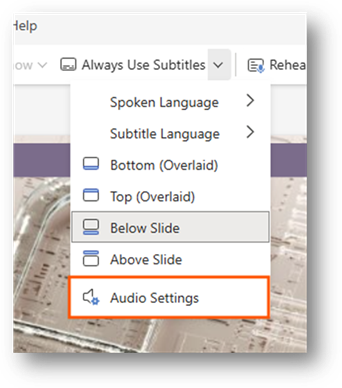
Audio settings
You can access audio settings where you can choose which microphone to use. To access this setting, please click onto “Audio settings”.
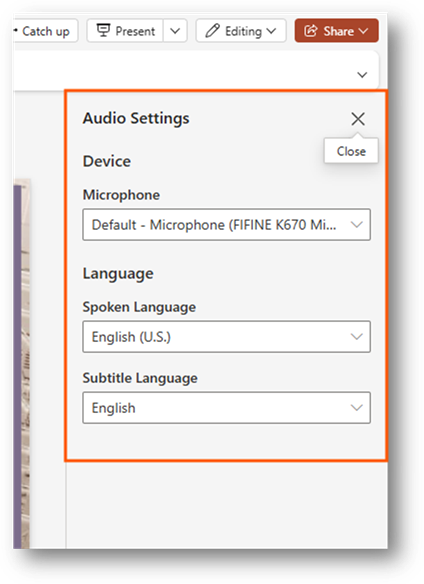
This will open the settings on the right-hand side of your screen in a pane.
You will be able to choose which microphone you want to use.
Keeping on top of tasks can often be challenging. The good news is, there are tools available to help you manage your tasks and help keep you organised. I have written this article to help shed some light on tools that are available that can hopefully help you manage your tasks in your day-to-day world.
Viva Insights
Microsoft Viva is a product that is built into Microsoft Teams and allows you to send praise to colleagues, breathing exercises to help with stress, voting on how you are feeling for each day, help with wellbeing, and help with productivity. Throughout this article, I will focus on the productivity aspect of Viva Insights.
How to get to Viva Insights
To get to Viva Insights, you will need to open Microsoft Teams via the app or by going to the website. Once you have signed into your organisation account, you will be directed to the Teams homepage where you can see all your teams and/or classes.
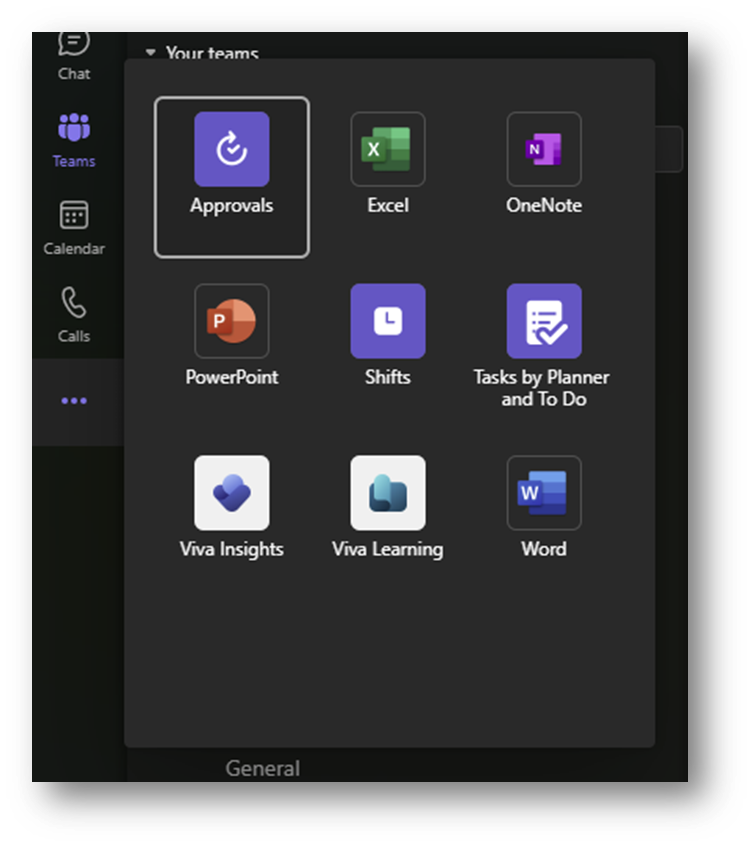
On the left-hand side, you will see the navigation bar for Teams where you can see Activity, Chat, Teams, Calendar, and calls.
Under calls, you will see the ellipsis icon (…) which has been underlined in white. This brings up other apps that has been added to Teams. The apps you see will vary depending on what apps have been added.
One of the apps you should see is Viva Insights. On the image above, this is on the bottom, under PowerPoint.
If you don’t see Viva listed on the apps list, then this could be because your administrator has not enabled Viva to be used in the organisation and you will need to speak to them about this.
Productivity
The productivity page shows suggested tasks which are based on emails, recent activity, and tasks which have been created from contacts which have been marked as important You see any meetings that are upcoming and will give you an option to choose whether you are attending the meeting or not.
This tool allows you to see upcoming events on your calendar which you haven’t responded to. You will be able to see the date and time these events are and will have an option choose whether you will attend the meeting or not via the RSVP option.
The RSVP option is on the bottom right-hand side, as seen in the image above, which will allow you to choose from two options.
Tasks that appear in the list will give you the option to pin them so they will move to the top or you can mark them as done.
Viva Commute
You can set up Viva Insights to create notifications telling you to wrap up your day. These notifications are visible in your notification feed in Teams.
When you click onto these notifications, you are taken to the Viva Commute page which allows you to begin your digital commute and view meetings, tasks that need completing or items added as a task.
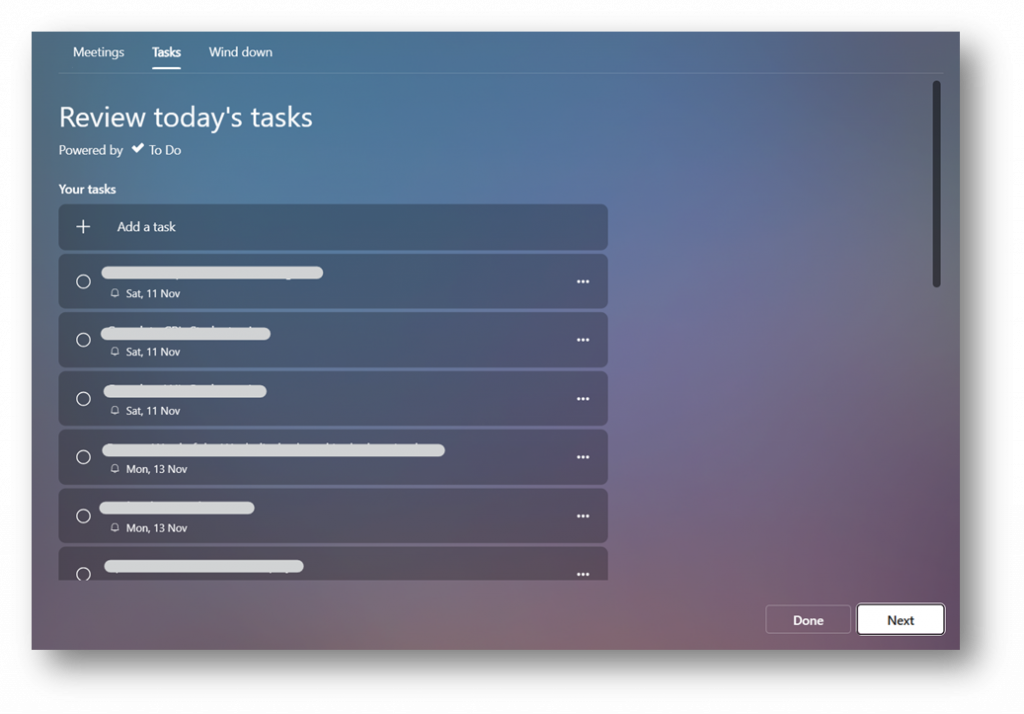
When you click onto begin your commute, you will be taken to a page where you will view your meetings for the next day.
You will be able to view your day tomorrow which takes events from your calendar and places them in order. You have the option to delete any events that show up on the list. This will remove them from the calendar.
When you click next, you will be able to view your tasks.
Tasks are arranged by due date so you can see what tasks need to be completed and when. You can choose to add tasks to this list, but will need to edit the tasks you add within the ToDo app or ToDo website.
Microsoft ToDo App
Microsoft ToDo is an app that allows you to manage your tasks. The app is available to download via the Microsoft store, Apple store, Google Play store. You can access the app via it’s own website: My Day – To Do (live.com) or access it via Outlook.
I find this app useful for managing tasks and managing my time to enable me to be more productive. The app allows you to set reminders, categories your tasks (If using web app) and set due dates for tasks to be completed.
If you have downloaded the ToDo app onto your device, you can manage your tasks directly from your phone, computer, and device.
Creating a task
You can create tasks by clicking onto add task at the bottom of the screen, as shown in my screenshot underneath.
When you have finished writing the task, you have a few options on the right-hand side of the task. The calendar option (Underlined in red) allows you to choose a due date.
This will bring up a calendar where you can choose a deadline for when this task should be completed. This is ideal as the app will order your tasks automatically by its due date, allowing you to focus on tasks that are due soon.
The clock icon(Underlined in red) allows you to set a reminder for when you want to be notified by the ToDo app to start working on the task.
This is ideal for when you want to set time aside to work on tasks. I often do this with my tasks so I know what I should be doing as we are often busy and may forget to do something.
The Calander icon with two arrows in a circle (underlined in red) is the re-occurring icon.
When you click onto this icon, you will be able to choose from daily, weekly, monthly and a customized re-occurrence.
When you choose when you want this task to re-occurrence and you save the task, when you mark it as complete, it will show in your tasks as completed but will re-create a new one with the subtasks and due date and reminder set for the next time you want this task due again (using the re-occurrence).
This is useful on the tasks that need to be re-created again and again. You only need to set it once and rest easy that the task will re-appear again when it is due. I do this when setting a task to look through abuse reports on the community.
Attaching files to the task
Once you have created your task, you can click onto it to view more options. You can choose to reset the date when you wanted to be notified about the task and if you want the task to re-occur. But you can choose to add a file to the task.
This option brings up a dialog window where you can choose to attach a file you want. This shows on the file above the add file option.
You can attach multiple files to tasks, or you can add links to these files via the add note option, allowing you to quickly access documents you need to for the task.
Applying categories to your tasks
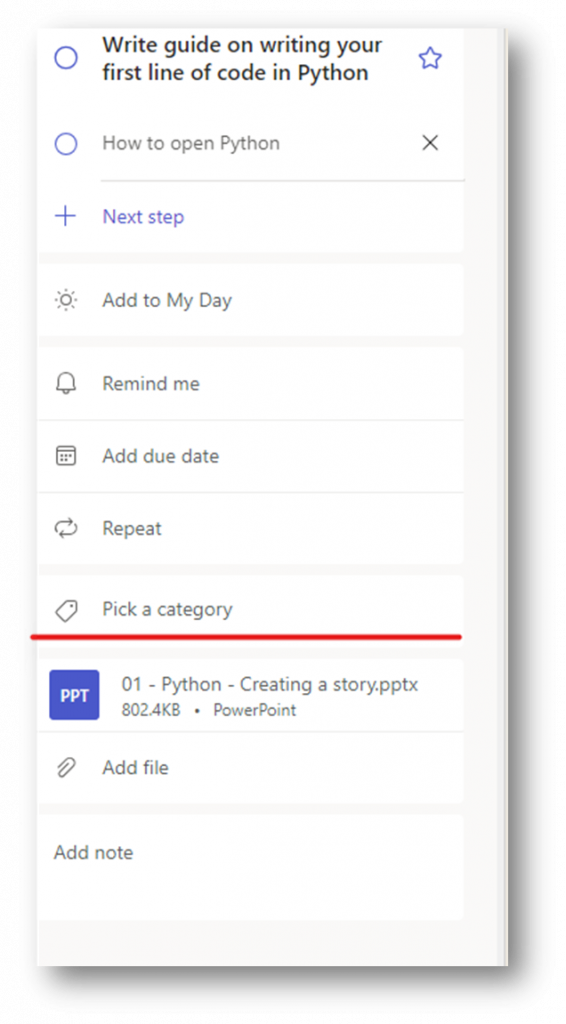
If you are using the ToDo web app, via the website, you can add a category to your task. The category option is under repeat (underlined in red).
When you click onto this option, a dropdown menu showing all of the categories you have created in Outlook will be displayed.
You can type in the pick a category box which will filter the list, or you can scroll through the list until you see a category you want to use. When you have found one, click onto it and it will apply it to the task.
This will show on the task underneath the task title. I often use categories to help me see what the task is referring to. In the task above, I can see that the task I need to do is to do with my school club. I can choose to filter by category so I can see what tasks need doing for each category.
Viewing my day in ToDo
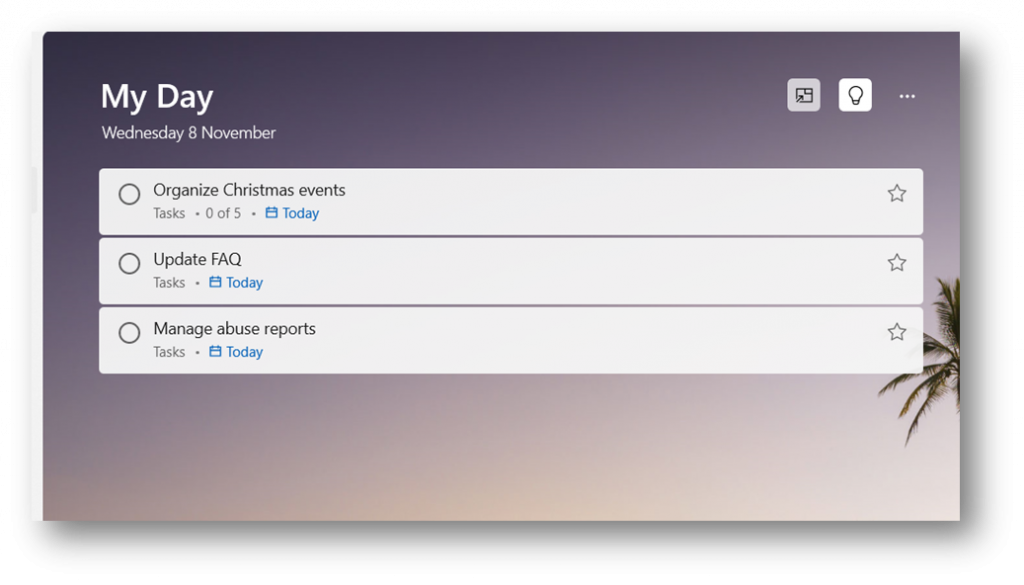
Each day the my day will refresh and display tasks that are due to be completed today.
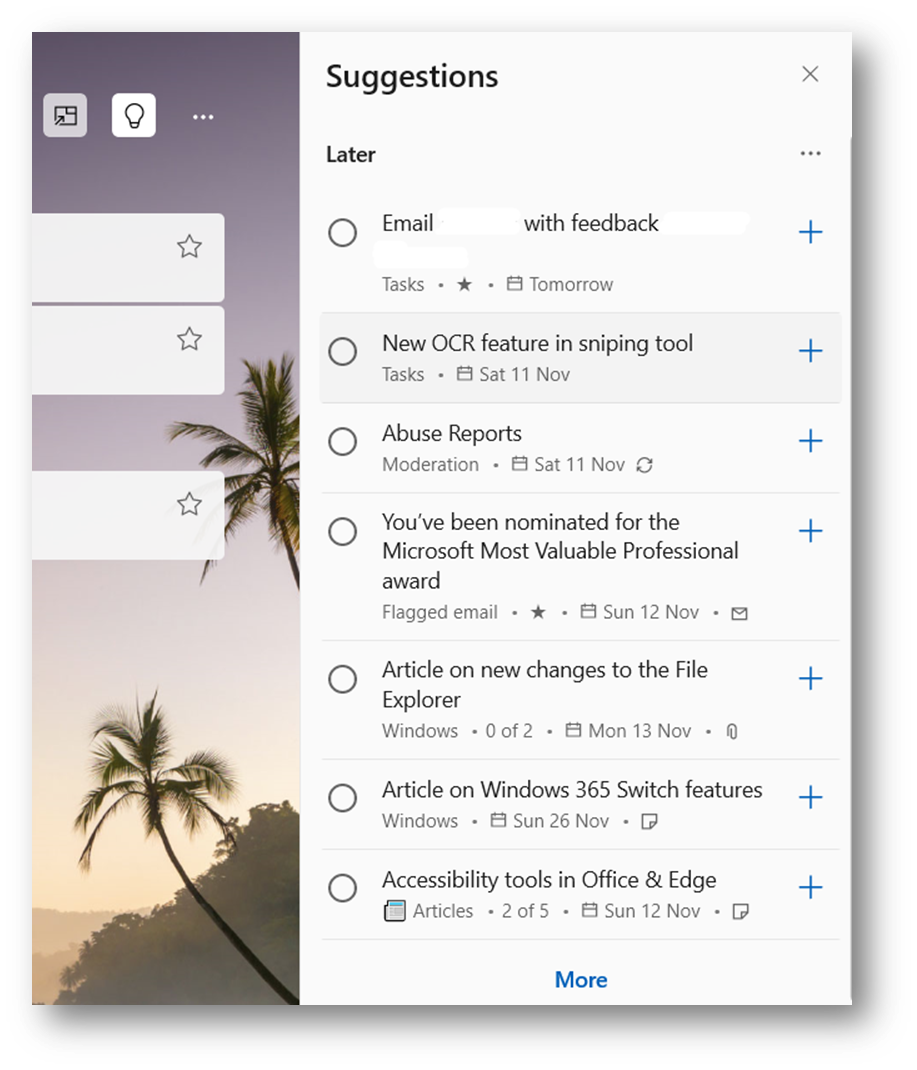
You can click onto the lightbulb option, sometimes labelled suggestions, in the top right-hand side (Underlined in red) to bring up suggested tasks that are due soon or that may be overdue tasks from previous dates.
After you have clicked onto this icon, you will see your suggested tasks appear on the right-hand side of your screen.
You will be able to see upcoming tasks that are due soon; tasks that have been recently added; and any tasks that are overdue. Tasks that are overdue will appear in red so they stand out. If you wanted to add a task to your day, you will need to click onto the plus icon on the right-hand side of the task. This will add the task to your day so you can work on the task.
This is a good way to keep on top of tasks that you have added in ToDo and allows you to reduce the chance that you will forget to complete a task. If you have the ToDo app on your phone, you will get notifications from the app telling you that you have tasks due today.
Marking tasks as completed
You can mark tasks as completed by clicking into the circle on the left-hand side of the task (underlined in red).
When you mark a task as complete, the task is moved from view into a completed section. This allows you to focus on the other tasks you must work through for that day. You will notice when you click onto a task with multiple subtasks, you can tick each subtask one by one to allow you to keep track on what you are doing on that task.
This is useful for large tasks that have multiple mini tasks to complete, especially if these tasks are to be completed over more than one day. When you come back to it you can easily see where you are currently and can continue working through the task.
Using ToDo in Outlook (new) app or Outlook.com
In Outlook.com and the new Outlook app (That is currently in beta), you can access ToDo and calendar using the ToDo icon on the top window bar on the right-hand side (underlined in red).
When you click onto this you will see your ToDo or Calendar appear on the right-hand side of the screen. Everything on the screen will adjust so it can fit everything on the screen, and you can select to show your calendar or ToDo list. If you have multiple email accounts added, you can click onto the email account displayed next to tasks to select a different account or to select a different task list.
In Outlook, I always prefer to view all my tasks and have a different window open with the ToDo app displaying my day. This is because in the side panel showing your tasks in Outlook, you are unable to see sub-tasks that need to be completed.
You can add tasks using the ToDo list in Outlook.com or in the new Outlook app by holding your left click button on your mouse and dragging your email to the side where the ToDo app is open. You will notice that the panel will display two boxes (as shown underneath)
At the top you can add the email as an event, allowing you to create an event that is added to your calendar (underlined in red). You can also create a task (underlined in orange) where the email will be attached to the task (just like a file) so that you can refer to it when you are thinking about completing the task.
When the task is added, you will notice the subject of the email is the task title. You can click into this and change the task title. The star on the right-hand side marks the task as important.
Under the task, you will notice that you have an envelope icon with the word email. This shows that the task contains a link to an email. To edit the due date, reminder, category and additional files and information, you must go back to the ToDo app then navigate to tasks where you will see the task that has been added (underlined in red).
You will be able to click onto the task where the task information will show on the right where you will be able to edit the task information or click onto the blue link to open the email in a new window.
As soon as you have edited the information for the task, it will save and will show in my day when the task is due. If you have forgotten what was mentioned in the email, you will be able to click onto the blue open in outlook link which will open a pop-up window that will display the email.
Working on a computer at home can have its challenges. Often, we get distracted by notifications from apps that appear on the screen when we are in the middle of doing something. We could find ourselves working too much and forget to have a break which results in us getting less productive over time.
In Windows 11 there is a setting “Focus sessions” which allows us to turn off notifications while this feature is on. The feature allows you to choose how long it is on for and if you are wanting breaks during the focus session. This is ideal for those of us who forget to have breaks while we are working. This works with the Clock app that is installed by default with Windows.
This article will walk through how to use this feature on the latest version of Windows 11 installed on a home computer or on Windows 365.
Starting a focus session from the Taskbar
You can start a focus session from the notification button. You will need to click onto the notification button found next to the date and time on your Taskbar.
If you click onto the notification button or the data and time, you will open your calendar and notifications on the right-hand side of your screen.
At the bottom of the calendar, you will see a timer on the bottom left-hand side which you can increase or decrease with the + and – buttons.
When you are happy with the time you are wanting for the focus session, you can click onto the Focus button which is on the bottom right.
This will start the focus session, where you will notice the notification icon changes to a bell snoozing.
By default, the focus session will contain five-minute breaks. This means that the session is broken into parts and between the parts there will be breaks. The number of breaks it will set depends on the length of time you have chosen.
If you want to end the session you will need to click onto the notification icon or date and time. You will see a button on the bottom right corner that says end session.
Clicking onto this will end the session and you will start to see new notifications appear on your screen when they come in. Old notifications you received during the session will not display on the screen. You will need to view these when you open your notifications.
When the timer has ended, or it has moved onto a break, you will get a notification on your desktop.
You can either choose to stop the session (first option) or choose to dismiss the notification (second option). When this notification displays it will chime. So, you don’t need to worry about missing it crop up on your screen. You will notice the timer will automatically move onto the next session (whether it is a break or a focus period within the session) .
When the total time has been reached, it will let you know that the focus session has ended and will return the notification icon back to its normal state.
You will start to receive notifications from apps again.
The clock app
The Clock app on Windows has Focus sessions built into it. This means you can turn on focus session directly from the app. You can set the duration that this will be on for. The app will display a timer which will count down the total time remaining before the session ends or until there is a break.
When you start a focus setting within the app, it behaves the same way as you starting a session from the Taskbar.
Finding the Clock app
You will need to open the Clock app which can be found in your app list.
Once the app is open, you will need to click onto Focus session which is the first option on the left-hand side navigation menu of the app.
This will load the focus session page where you can choose how long you wish your next session to be and if you are wanting breaks.
This page allows you to see your tasks that have been added in Microsoft ToDo, but for this to show you must make sure you are signed into your Microsoft account. You can install Spotify and begin to listen to music during your focus session if you wanted, although there is nothing stopping you from using other apps on Windows to listen to music.
Using focus sessions in the Clock app
In the middle of the tile, you can choose how long you want the focus session to last for using the buttons found on the right-hand side of the timer.
The up arrow will increase the timer. The down arrow will decrease the timer. Depending on the length of time you choose, depends on if a break will be added within your focus session. If a break is added, you will see how many breaks you have under the timer input field.
You have the option to skip breaks if you wish. If you want to skip breaks, then you need to make sure the skip breaks checkbox is checked.
.
When you are ready for the session to start, you just need to click onto start session which is the blue button under the timer.
Once you click onto the start focus session button, you will notice that the tile changes to a timer showing you how much time is left.
You can choose to pause the timer at any time in the app by clicking onto the pause icon. The ellipsis icon (…) brings up a menu where you can choose to either show time remaining or not. By default, this is set to show time remaining.
You will notice your notification icon on your Taskbar will change to a bell snoozing.
This allows you to see that your notifications will be muted allowing you to focus on your tasks. In the top right corner of the tile, you see an icon with an arrow pointing inside a square.
This option moves the tile out of the app and places it onto your screen in the top right corner.
While this is good, it will display over the other windows on the monitor which may become too distracting. Unfortunately, you are unable to move the window when it is out of the app. This makes it more of a nuisance when you are trying to get on with your work and you have this window in the way.
If you do decide that you wish the tile to be back in the Clock app, you will need to click onto the icon in the top left corner which looks like an arrow pointing out of a square.
This will move it back into the clock app where you will be able to minimize the app and focus on what you need to be doing rather than the timer.
When the timer has finished. The app will display get ready to focus part again. Allowing you to start the cycle all over again.
Selecting a task to focus on during the focus session
Underneath the get ready to focus tile, you will see your tasks tile. If you are not signed in, then you will need to sign in before this will populate with tasks from the Microsoft ToDo app.
If you hover over a ToDo, you can choose a task to focus on that task for the session. Clicking onto the task will select it for the focus session. Once you have selected a task, you will notice a blue box around the selected task.
After the session has ended, you will see a time under the task which tells you how long you have had on that task.
If you have completed the task, you can mark it as completed by clicking into the circle on the left-hand side next to the name.
This places a line through the task and marks it as completed. This will update the ToDo app.
The Immersive Reader is a reader that Microsoft have developed that takes the content from the page and places it inside the reader. It takes out unnecessary content such as adds, website navigational buttons and other content that isn’t included with the article. The user is able to customize the reader to make it easier for them to read the content inside the reader.
The Immersive Reader is built into the Edge browser and can be accessed via the address bar when you navigate to a website. In your address bar, you will notice the Immersive Reader icon (looks like an open book with a speaker showing on the bottom right).
You can open the Immersive Reader by pressing F9 on your keyboard. The Immersive Reader will open the page inside the reader. You will notice that content at the side of the page is removed leaving you with just the text and images that you need for the text.
At the top of the reader, you will notice the reader options which are pinned. These options allow you to customize the reader for a better experience.
Read aloud
This option is the first option on the toolbar with a capital letter A with sound waves coming from the right-hand side of it.
When you click onto this option, the computer will start reading the text to you. It will start from the top and work down. When it starts reading, the toolbar will be hidden and replaced with the read aloud toolbar. The screen will fade showing where the computer is at with reading the text.
You can pause, go back to the previous paragraph, or advance to the next paragraph by using the control options located in the middle of the toolbar.
The play/pause button in the middle tells the computer to read or stop reading. The computer will remember where it is so when you press play, it will continue reading the text from where it stopped.
The icon on the left-hand side of the play/pause button tells the reader to go back to the previous paragraph. If you are in the middle of a paragraph, this will go back to the start of that paragraph.
The icon on the right-hand side of the play/pause button tells the reader to advance to the next paragraph.
On the far right-hand side of the toolbar, you will find voice options.
This allows you to control the speed, type of voice that is used. When you click onto it, a drop-down menu will appear.
By default, the voice speed will be set to normal, and the voice will be a woman’s voice. To change the speed, move the slider from left to right. Left slows the speed down and right will make the speed faster.
To change the voice, click onto the drop-down menu for a list of different voices from female to male and with different accents.
Just click onto the voice you want to use. The computer will then adjust the voice automatically without having to refresh and continue reading the text to you.
Text preferences
The text preferences option allows you to customise the text and the page theme. This allows you to customise the text so you can read it at ease.
Text Size
Your first option is text size. You can move the slider from left to right to make your text smaller or bigger. When you move the slider, you will notice that the text will be changed straight away.
Text spacing
Text spacing allows you to space the text on the page which will make it easier for people that find the text when it is too close together.
The left-hand side shows the text without line spacing enabled. The image on the right shows the text spacing option enabled. As you can see, the text spaces out making it easier to read.
Font
You can choose between three different fonts for the Immersive Reader. This option is found under text spacing, as seen in this image underneath. These fonts have been tried by different people around the world, so Microsoft know they will work for a wide range of audiences.
Text column style
This allows you to choose how wide your columns are on the screen. This allows you to make it easier to read the text by making the area where the text is situated smaller, or larger, depending on the user.
Page themes
Page themes allow you to change the page colour which acts like an overlay that has been applied to the page. This option is located under text column style, as seen in the screenshot underneath.
When you choose a page theme, depending on the theme, the text colour will change too. The setting will be applied as soon as you choose a theme. You may need to click onto more themes if you don’t see a theme that suits you listed.
Grammar tools
Grammar tools allow you to customize how grammar is displayed on the screen. You can change settings to show parts of the speech or chose to show syllables.
Syllables
This option allows you to break words into their syllables. This option is the first option in the Grammar tools options, as seen in the screenshot underneath.
When you apply this setting, you will notice the words have been broken into their syllables. This setting is useful for those who are struggling to read the words, or an individual word, and need it broken down into syllables, so they can read it.
Parts of speech
Parts of speech option allows you to highlight Nouns, Verbs, Adjectives, and Adverbs in different colours. This option can be found under the syllables option, as seen in the screenshot underneath.
You can customize the colours, so they are colours you use in school or colours that make it easier for you to read. You can choose which labels are applied to the text using the toggles on the right-hand side.
When you enable each option, the reader will highlight the words without the page been refreshed.
This option is perfect for those who need help identifying Nouns, Verbs, Adjectives and Adverbs. You can choose to show labels which appears above the word. The show labels option is found at the bottom of the menu.
This will change the spacing of the paragraphs and lines to allow the labels to show above each word. The labelling is the same labelling used in schools by educators.
Reading Preferences
Reading preferences allows you to customize how you read the text in the Immersive Reader and can be found on the right-hand side of the Grammar tools option on the menu.
Line focus
This option allows you to focus on one, three, or five lines while you are reading. This is the first option in the menu.
Once this option is enabled, you will be able to choose how many lines of text are focused at one time.
As soon as you select an option, you will see an overlay been applied that will make the screen go darker apart from the lines which you are reading.
You can move the line focus up or down using your mouse wheel or by using the arrow buttons on the bottom right-hand side of the screen (underlined in red in the image underneath).
Picture dictionary
Picture dictionary allows you to define words in the text using images to help you understand the word. This is the second option in the menu, found under line focus.
When this option is enabled, you will be able to move your mouse curser over words in the text. If there is a definition supported by picture dictionary, you will see a wand appear over the word.
When you click onto the word, a pop-up box will appear with a picture to help show the meaning of the word.
Sometimes there may be more then one picture to help show the meaning of the word. This is ideal for people who are struggling to see what words mean and may benefit from a picture to help them understand the meaning.
Translate
This option is ideal for those who don’t speak the language the page is written in and needs it translating to their language so they can understand it. The translate feature is found under the picture dictionary option and will translate the entire page.
You will need to select a language from the dropdown menu under translate.
Once you have selected a language, you will need to enable the translate entire page option, found at the bottom.
This will translate the page to the chosen language. If you are using the picture dictionary, this may not work in all languages.
In the third week in January 2023 I received an email from the Windows Insider Most Valuable Professional (MVP) team, congratulating me on the award.
Email from the Windows MVP team congratulating me on the Windows Insider MVP award for 2023
The award was issued based on my contributions made on the Microsoft Community, for testing Windows Insider updates (submitting feedback and completing challenges) and helping those in the community with Windows related questions.
What is the Windows Insider MVP award
Windows Insider MVP award
The award recognises those who have made extraordinary contributions to the Windows communities world wide. People who demonstrate their passion and enthusiasm for helping people and shaping Windows are what the Windows Insider MVP team are looking for. These people are seen as community leaders.
MVPs help folks on online communities such as the Microsoft Community, Microsoft Tech Community and any other online community that focuses on Windows. This doesn’t have to be a Microsoft owned community. This can be anything from posting on social media sites to helping people on online forums.
They author blog posts and books on Windows which help people. These can either be written on your own websites or on online communities (if you have permission to do this). These could be on new features that are coming soon, or articles on how to solve commonly asked questions.
MVPs may host in person events, or online events (Such as podcasts), where they can talk about new versions of Windows. Help people by showing them how to use Windows or answering their questions. They may talk about new features that are coming to Windows. Then allow people to speak to them about these new features and what they think of them.
Most importantly, Windows Insider MVPs are active in the Windows Insider program. They will be testing new releases of Windows and submitting feedback to help shape the future of Windows. They submit feedback via the Windows Feedback hub or through the dedicated channels to the Windows Insider team.
My contributions for last year was a mixture of Moderating, helping people on the community, authoring articles and testing Windows Insider updates.
I am actively moderating the Microsoft Community (https://answers.microsoft.com) as a Volunteer Moderator (VM). Most of my time is spent making sure the community is a safe and welcoming space for everyone who comes and visits. Making sure questions are in the right place, so the user is able to get the best possible support.
When I wasn’t moderating, I was participating in threads answering questions and helping users with their problems. I am found in the Xbox, Windows, Edge and Office forums mainly. If I wasn’t answering questions, I was writing articles to help people with commonly asked questions or guides on how people can make use of new features available to Windows, Xbox, Office and Edge.
Each week I was testing new updates in the Windows Insider program. My home PC is running the Dev flights (Insider builds), and I am actively looking at new features to test out. When I encountered bugs, I submitted feedback via the Feedback hub.
Throughout last year, and this year, I have been active in my local community. Helping people with questions they have with Windows and other Microsoft products, voluntary. These are through in person events that people can come to to ask me questions about Windows and I will try my best to answer those questions.
As more of us are using online services for personal use, work use and school/education. It is important that we are making sure we are keeping our accounts/data safe and secure. Hackers and criminals are getting more creative in the ways they try and steel our passwords and gain access to sensitive information. Thus, we need to make sure we are keeping one step ahead of them by making it harder for them to gain access to sensitive information.
Microsoft Edge has tools built into the browser that allows you to keep your passwords secure, and help you create new secure passwords you can use for different sites. This article will go through these features and provide you with instructions on how to enable them. These may differ between builds/versions of the Edge browser.
Sign in
To use some of the features in this article, please ensure you have signed into the Edge browser and that it is synchronising. If you have a local profile and want to sign into your account (either work/school or personal account), please launch Edge.
Then, on the top-left of the browser window, you want to click onto your avatar
A menu should appear with your account information & Microsoft rewards points. You want to select Add profile which is found at the bottom of the menu.
It will then load a new instance of the browser on a new profile and begin to ask you to sign in and setup your browsing experience.
Locating these features
The features that are discussed in the article are in the password section in Edge settings. You can get to this setting by copy and pasting, or typing, the following URL: edge://settings/autofill/passwords
You can navigate to these settings by clicking onto your profile avatar located on the top-left of your window.
Then select the “Passwords & autofill”
You will then be taken to the Microsoft password manager which is built into the Microsoft Edge browser. This is where you can view all of your saved passwords under your Microsoft account, access more settings for your passwords and password security check feature.
Password security check (Scan for leaked passwords)
One feature the browser has is the password security check. This feature allows you to view passwords that have been leaked, reused or that are week.
To access this feature, please click onto “Password security check”
As soon as you open the password security check, it will check all of your passwords stored to see if any have been leaked, reused or week. Once it has done this, it will update the table.
For security, you should not use a password more than once for different sites. You should use one password for each site. This way, if one is compromised, the attacker cannot get into other accounts using the same password.
At the top of the table, you will want to click the tab for what table you wish to see.
Each tab will display a different table showing your accounts. You can view your accounts and the options for viewing your passwords, changing your password, editing your password/info or deleting it.
If you are wanting to change your password, please click onto the change option. This will open a new tab onto the website’s page where you can sign into your account and change your password.
If you want to delete the entry because you no longer have the account anymore, please click onto the ellipsis icon (three dots) and select delete.
It is important to keep your password list up to date. So if you no longer have an account, but have stored the username and password, you may as well remove it as it is no longer needed.
Suggest strong passwords
Another way we can keep our accounts secure online is by allowing Microsoft Edge to suggest strong passwords you can use on sites that you are creating accounts on. This generates random characters, numbers, and symbols that you can use as a password.
This setting is called “Suggest strong passwords”
For this, you will need to go back to the Microsoft password manager page and click onto “More settings”
On the settings page, you will see a list of options you can enable or disable depending on your preference. I would suggest enabling the option for the browser to suggest strong passwords.
You can toggle this option on and off. If it is blue/green, and the white dot is to the right, then it means that it is on. By having this option enabled, Edge will offer randomly generated passwords you can use when signing up to sites. It will then save these passwords in Microsoft password manager, so you don’t need to try and remember the password it has generated. This will sync to your other devices you have signed into your account on.
Once this feature has been enabled, you will notice that Edge will automatically generate a password for you to use on a site. You can trigger it to do this by right clicking into the password field and selecting the option to generate a strong password.
You will notice that this will be automatically generated and placed inside the password box. When you click into the password box, you can choose to refresh (generate a new password) or you can leave it alone and go ahead and create a new account on the site.
View and autofill passwords and passkeys
Microsoft password manager allows you to choose whether you want the browser to autofill passwords that it has stored for websites. I recommend enabling this feature on your account that no one else uses. If you have a shared account, do not turn this option on. To enable this feature, please toggle the autofill passwords and passkeys option to on and choose the relevant option you wish to use.
Once you have enabled this option, by default, the fill website password and sign in automatically option will be enabled. When you sign into a website that you have saved a username and password for, Edge will autofill your username and password for you as soon as you click onto the email/username box.
If you are using a shared device with your own individual accounts, I would recommend using the “Prompt for the device sign-in options before viewing or filling website password” option for added security. This will prompt you for your Windows Hello pin before populating the sign in boxes with the relevant information. You can learn more about this here: https://aka.ms/requireauth
Scan passwords for leaks
This option is tied to the password security check option earlier in this article. I recommend having this enabled
Once enabled, the browser will automatically scan your passwords for any leaks that have been reported or detected. If there are any leaks, they will be visible on the leaks table in the password security check feature. It does also provide you a notification if it has detected anything. More information about this feature can be found here: https://go.microsoft.com/fwlink/?linkid=2356322
Automatically upgrade to passkeys
This setting will prompt you to upgrade to a passkey to use instead of a password, if the site supports passkeys. Passkeys are more secure because of how they work. As security is advancing, more sites are moving away from traditional methods for account security and moving closer to new modern systems such as passkeys.
I hope it was useful. Other articles you may be interested in reading are:
The Microsoft Edge start page has the MSN newsfeed which keeps you updated with all the latest news and updates around the world, and in your local area/country. However, not everyone wants this feed and would much prefer to have a start page with their pinned sites and a search bar.
This article will walk you through the process of turning off the MSN newsfeed. This is another way you can customize Edge to just how you like it.
You will notice this error show when you are trying to add an account to the Mail App on Windows 10. The cause of this error can be based on multiple factors, which is why this troubleshooting guide will help to try and resolve this error.
When reading though the community, and though my own experience, this error looks to crop up when the app is not up to date, Windows is not up to date or if there are corrupt files within the app files or Windows files.
This is one question that seems to crop up from time to time. People who are playing Minecraft on Xbox and Windows do not seem to have this problem. Mainly because Xbox is integrated into the operating system.
However, those on Nintendo, and PlayStation have to link their accounts to their Microsoft Account. This guide will walk you though how to link those accounts together.
The new Microsoft Edge browser allows you to install extensions from Google Play and Microsoft Edge store. If you want to learn how to install extensions from either of these stores, this article will be a good place to start.
The Edge browser does not relay on Windows updates to update the web browser. This allows Edge to be updated more frequently. This article will walk you though how to install updates for the Edge browser.
Microsoft Edge stores passwords for sites you frequently visit which make it easier for you to keep track of passwords you use when visiting sites. This article will explain how passwords are saved on Microsoft Edge and how you can update these saved passwords.
Microsoft has made vast improvements to where passwords are stored and how they can be accessed across devices. Passwords used to be stored in the browsers password manager which could have been accessed via the browser’s settings. However, with more people asking for the passwords to be accessed from other apps such as the Authenticator app, Microsoft made changes so that passwords are now stored in Wallet.
Some of you have probably realised that the Xbox App has changed its name to Xbox Companion App. It does the same thing as the Xbox App, but there are some new features!
With summer in full swing here in the UK. Most of our time is spent enjoying the nights outside. However, for those nights where the sun is far too hot for us to enjoy, Xbox have our backs with the Awesome line-up of games for July!
While we are just getting started with Spring. Microsoft is going to be rolling out the Spring Creators Update for millions of Windows 10 devices around the globe. With this update, we will be seeing more features for us to use – or play around with, if your like me!
Why not get a head start and find out what features are coming.
While Summer is nearly upon us. It has been a hot start of May! This month Xbox have got some sweet Games lined up for us in May. Want to find out what they are?
In Microsoft Office your able to create links to other documents and web pages in Microsoft Office. This guide will walk you though how to do this step by step with pictures so you can see exactly what I am talking about.
Easter has not been a good start, for those of us who are living in the UK, so it will probably be a time to sit back and play online. However, looking at our game collection may put us off for a bit. Its a good job Xbox have us sorted with this months line-up of Games with Gold.
If your using the Xbox App on Windows 10, you may get a sign in error like this: (0x409) 0x80070422. This indicates that some of the services the Xbox App uses have not been enabled, or not working properly. Thus results with this error code, and you will also notice your unable to sign into Xbox Live through the App and other services could be effected.
This article will walk you though the steps needed to resolve this error – or attempt to at least 🙂 Please make sure you follow the steps accordingly. If your not confident with following these steps, make sure you ask someone who is confident with doing this.
In this article I will be guiding you through the process of changing the AutoPlay settings in Windows 10. For those of you who learn better with videos, I have attached my YouTube video here as well.
I have come across a few people, who I help in person, and on this community (As well as many others). This is often the question I get asked. This is why I have created this article, to help you understand Live Tiles and how they are supposed to behave.
Now, this is news that everyone has been waiting for. The ability to change your picture to a custom picture in the Xbox One App!
This article will outline, step by step, how to change your profile picture on the Xbox App, for use on Xbox Live. It will walk you though the Xbox App, and even adding your own custom images as profile picture.