Category: Education

These are articles that showcase tools that may be beneficial in education.

  • Microsoft apps for enhancing your productivity

    Microsoft apps for enhancing your productivity

    Keeping on top of tasks can often be challenging. The good news is, there are tools available to help you manage your tasks and help keep you organised. I have written this article to help shed some light on tools that are available that can hopefully help you manage your tasks in your day-to-day world.

    Viva Insights

    Microsoft Viva is a product that is built into Microsoft Teams and allows you to send praise to colleagues, breathing exercises to help with stress, voting on how you are feeling for each day, help with wellbeing, and help with productivity. Throughout this article, I will focus on the productivity aspect of Viva Insights.

    How to get to Viva Insights

    To get to Viva Insights, you will need to open Microsoft Teams via the app or by going to the website. Once you have signed into your organisation account, you will be directed to the Teams homepage where you can see all your teams and/or classes.

    On the left-hand side, you will see the navigation bar for Teams where you can see Activity, Chat, Teams, Calendar, and calls.

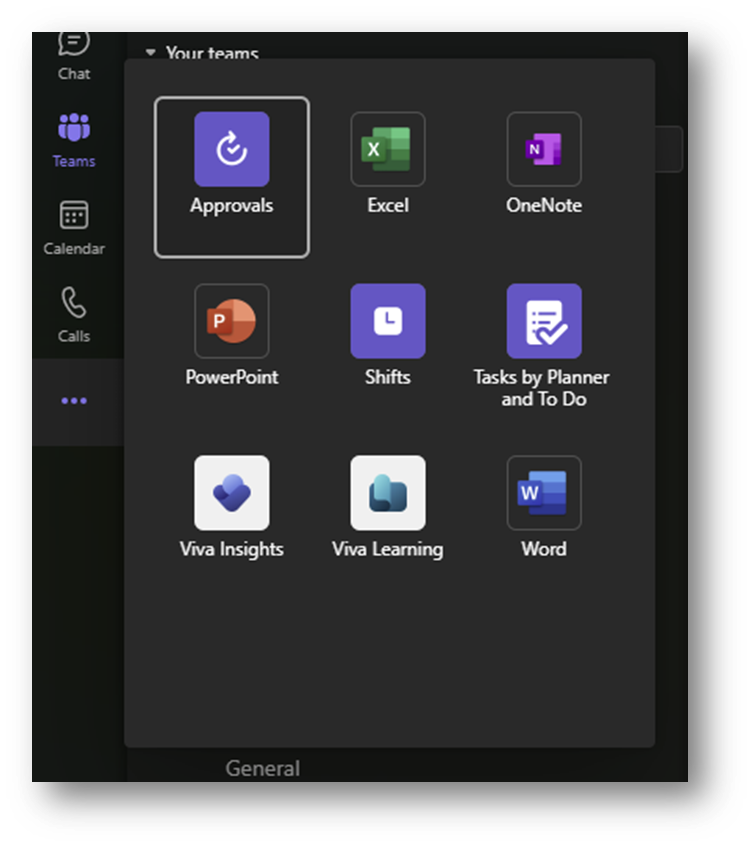
    Under calls, you will see the ellipsis icon (…) which has been underlined in white. This brings up other apps that has been added to Teams. The apps you see will vary depending on what apps have been added.

    One of the apps you should see is Viva Insights. On the image above, this is on the bottom, under PowerPoint.

    If you don’t see Viva listed on the apps list, then this could be because your administrator has not enabled Viva to be used in the organisation and you will need to speak to them about this.

    Productivity

    The productivity page shows suggested tasks which are based on emails, recent activity, and tasks which have been created from contacts which have been marked as important You see any meetings that are upcoming and will give you an option to choose whether you are attending the meeting or not.

    This tool allows you to see upcoming events on your calendar which you haven’t responded to. You will be able to see the date and time these events are and will have an option choose whether you will attend the meeting or not via the RSVP option.

    The RSVP option is on the bottom right-hand side, as seen in the image above, which will allow you to choose from two options.

    Tasks that appear in the list will give you the option to pin them so they will move to the top or you can mark them as done.

    Viva Commute

    You can set up Viva Insights to create notifications telling you to wrap up your day. These notifications are visible in your notification feed in Teams.

    When you click onto these notifications, you are taken to the Viva Commute page which allows you to begin your digital commute and view meetings, tasks that need completing or items added as a task.

    When you click onto begin your commute, you will be taken to a page where you will view your meetings for the next day.

    You will be able to view your day tomorrow which takes events from your calendar and places them in order. You have the option to delete any events that show up on the list. This will remove them from the calendar.

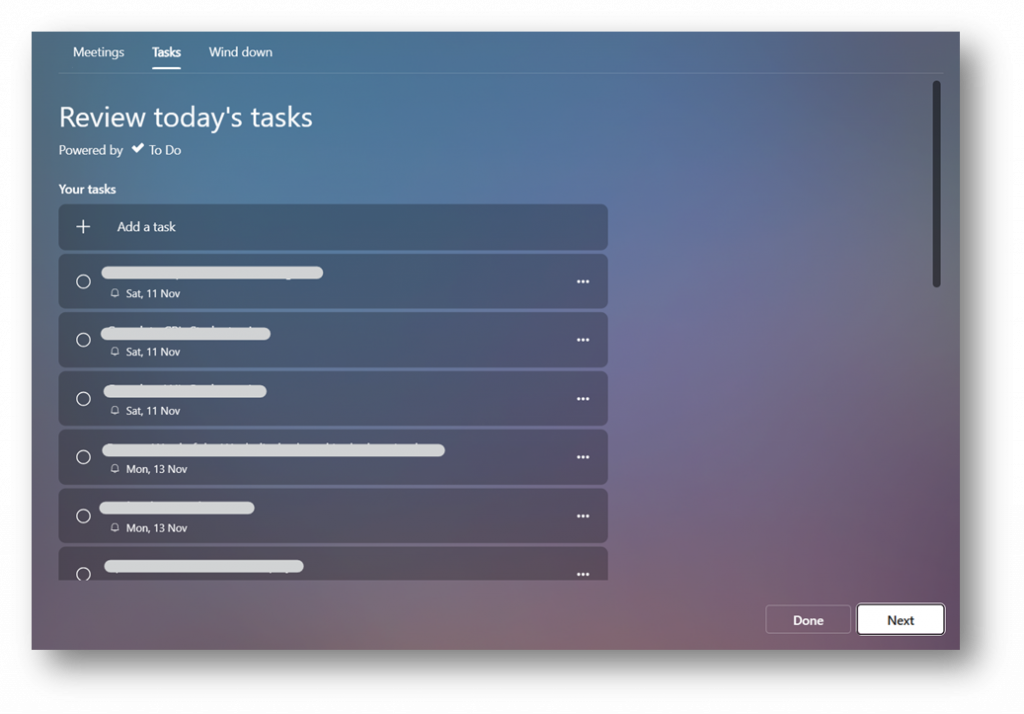
    When you click next, you will be able to view your tasks.

    Tasks are arranged by due date so you can see what tasks need to be completed and when. You can choose to add tasks to this list, but will need to edit the tasks you add within the ToDo app or ToDo website.

    Microsoft ToDo App

    Microsoft ToDo is an app that allows you to manage your tasks. The app is available to download via the Microsoft store, Apple store, Google Play store. You can access the app via it’s own website: My Day – To Do (live.com) or access it via Outlook.

    I find this app useful for managing tasks and managing my time to enable me to be more productive. The app allows you to set reminders, categories your tasks (If using web app) and set due dates for tasks to be completed.

    If you have downloaded the ToDo app onto your device, you can manage your tasks directly from your phone, computer, and device.

    Creating a task

    You can create tasks by clicking onto add task at the bottom of the screen, as shown in my screenshot underneath.

    When you have finished writing the task, you have a few options on the right-hand side of the task. The calendar option (Underlined in red) allows you to choose a due date.

    This will bring up a calendar where you can choose a deadline for when this task should be completed. This is ideal as the app will order your tasks automatically by its due date, allowing you to focus on tasks that are due soon.

    The clock icon(Underlined in red) allows you to set a reminder for when you want to be notified by the ToDo app to start working on the task.

    This is ideal for when you want to set time aside to work on tasks. I often do this with my tasks so I know what I should be doing as we are often busy and may forget to do something.

    The Calander icon with two arrows in a circle (underlined in red) is the re-occurring icon.

    When you click onto this icon, you will be able to choose from daily, weekly, monthly and a customized re-occurrence.

    When you choose when you want this task to re-occurrence and you save the task, when you mark it as complete, it will show in your tasks as completed but will re-create a new one with the subtasks and due date and reminder set for the next time you want this task due again (using the re-occurrence).

    This is useful on the tasks that need to be re-created again and again. You only need to set it once and rest easy that the task will re-appear again when it is due. I do this when setting a task to look through abuse reports on the community.

    Attaching files to the task

    Once you have created your task, you can click onto it to view more options. You can choose to reset the date when you wanted to be notified about the task and if you want the task to re-occur. But you can choose to add a file to the task.

    This option brings up a dialog window where you can choose to attach a file you want. This shows on the file above the add file option.

    You can attach multiple files to tasks, or you can add links to these files via the add note option, allowing you to quickly access documents you need to for the task.

    Applying categories to your tasks

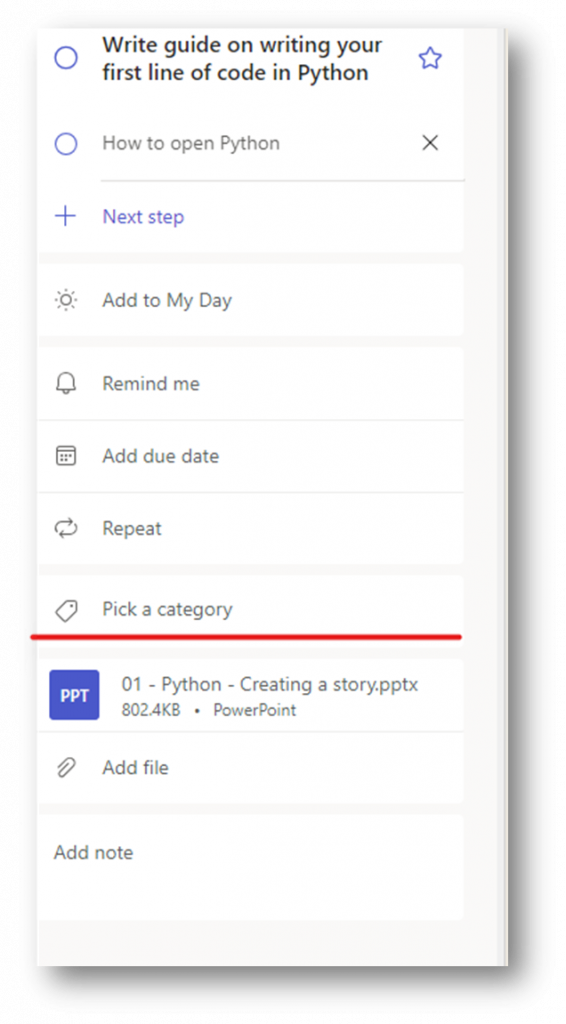
    If you are using the ToDo web app, via the website, you can add a category to your task. The category option is under repeat (underlined in red).

    When you click onto this option, a dropdown menu showing all of the categories you have created in Outlook will be displayed.

    You can type in the pick a category box which will filter the list, or you can scroll through the list until you see a category you want to use. When you have found one, click onto it and it will apply it to the task.

    This will show on the task underneath the task title. I often use categories to help me see what the task is referring to. In the task above, I can see that the task I need to do is to do with my school club. I can choose to filter by category so I can see what tasks need doing for each category.

    Viewing my day in ToDo

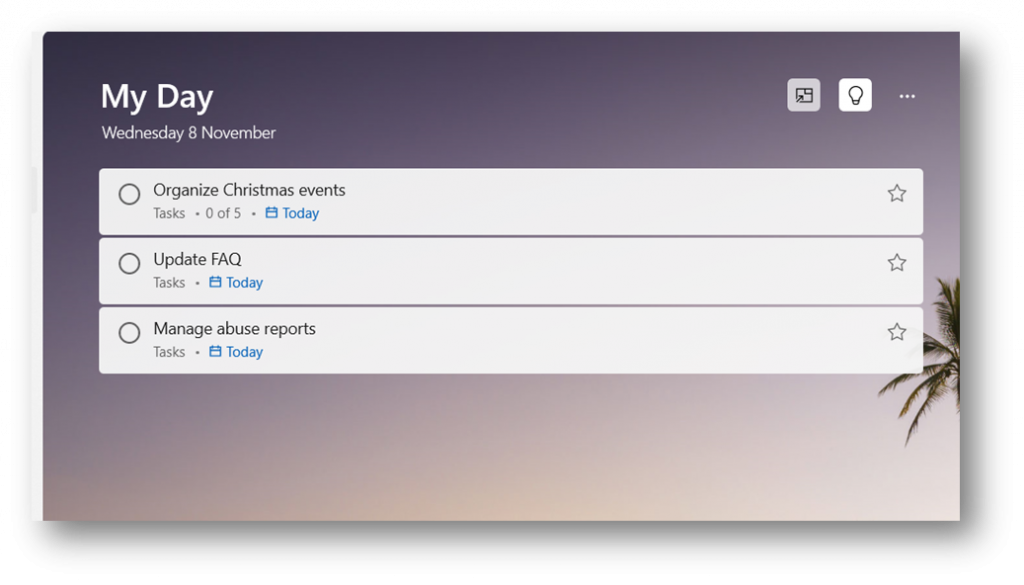
    Each day the my day will refresh and display tasks that are due to be completed today.

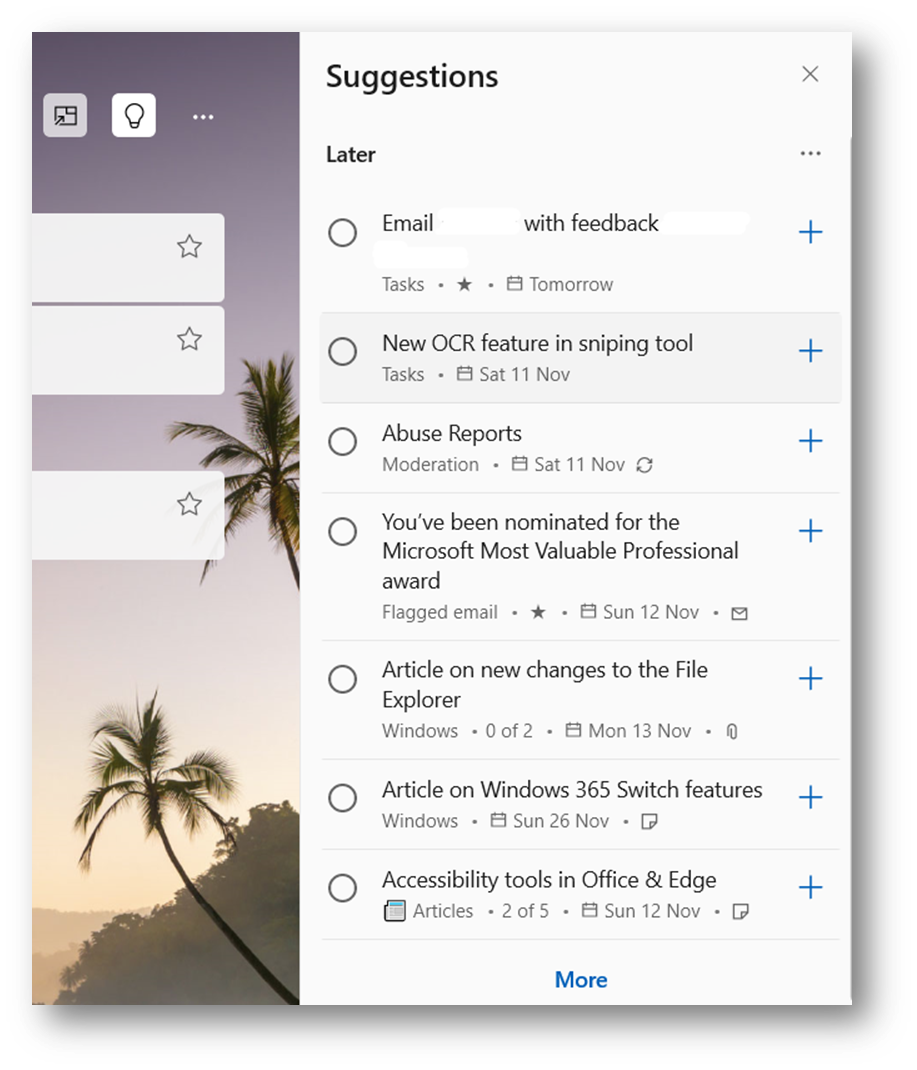
    You can click onto the lightbulb option, sometimes labelled suggestions, in the top right-hand side (Underlined in red) to bring up suggested tasks that are due soon or that may be overdue tasks from previous dates.

    After you have clicked onto this icon, you will see your suggested tasks appear on the right-hand side of your screen.

    You will be able to see upcoming tasks that are due soon; tasks that have been recently added; and any tasks that are overdue. Tasks that are overdue will appear in red so they stand out. If you wanted to add a task to your day, you will need to click onto the plus icon on the right-hand side of the task. This will add the task to your day so you can work on the task.

    This is a good way to keep on top of tasks that you have added in ToDo and allows you to reduce the chance that you will forget to complete a task. If you have the ToDo app on your phone, you will get notifications from the app telling you that you have tasks due today.

    Marking tasks as completed

    You can mark tasks as completed by clicking into the circle on the left-hand side of the task (underlined in red).

    When you mark a task as complete, the task is moved from view into a completed section. This allows you to focus on the other tasks you must work through for that day. You will notice when you click onto a task with multiple subtasks, you can tick each subtask one by one to allow you to keep track on what you are doing on that task.

    This is useful for large tasks that have multiple mini tasks to complete, especially if these tasks are to be completed over more than one day. When you come back to it you can easily see where you are currently and can continue working through the task.

    Using ToDo in Outlook (new) app or Outlook.com

    In Outlook.com and the new Outlook app (That is currently in beta), you can access ToDo and calendar using the ToDo icon on the top window bar on the right-hand side (underlined in red).

    When you click onto this you will see your ToDo or Calendar appear on the right-hand side of the screen. Everything on the screen will adjust so it can fit everything on the screen, and you can select to show your calendar or ToDo list. If you have multiple email accounts added, you can click onto the email account displayed next to tasks to select a different account or to select a different task list.  

    In Outlook, I always prefer to view all my tasks and have a different window open with the ToDo app displaying my day. This is because in the side panel showing your tasks in Outlook, you are unable to see sub-tasks that need to be completed.

    You can add tasks using the ToDo list in Outlook.com or in the new Outlook app by holding your left click button on your mouse and dragging your email to the side where the ToDo app is open. You will notice that the panel will display two boxes (as shown underneath)

    At the top you can add the email as an event, allowing you to create an event that is added to your calendar (underlined in red). You can also create a task (underlined in orange) where the email will be attached to the task (just like a file) so that you can refer to it when you are thinking about completing the task.

    When the task is added, you will notice the subject of the email is the task title. You can click into this and change the task title. The star on the right-hand side marks the task as important.

    Under the task, you will notice that you have an envelope icon with the word email. This shows that the task contains a link to an email. To edit the due date, reminder, category and additional files and information, you must go back to the ToDo app then navigate to tasks where you will see the task that has been added (underlined in red).

    You will be able to click onto the task where the task information will show on the right where you will be able to edit the task information or click onto the blue link to open the email in a new window.

    As soon as you have edited the information for the task, it will save and will show in my day when the task is due. If you have forgotten what was mentioned in the email, you will be able to click onto the blue open in outlook link which will open a pop-up window that will display the email.

  • Focus session in Windows

    Focus session in Windows

    Working on a computer at home can have its challenges. Often, we get distracted by notifications from apps that appear on the screen when we are in the middle of doing something. We could find ourselves working too much and forget to have a break which results in us getting less productive over time.

    In Windows 11 there is a setting “Focus sessions” which allows us to turn off notifications while this feature is on. The feature allows you to choose how long it is on for and if you are wanting breaks during the focus session. This is ideal for those of us who forget to have breaks while we are working. This works with the Clock app that is installed by default with Windows.

    This article will walk through how to use this feature on the latest version of Windows 11 installed on a home computer or on Windows 365.

    Starting a focus session from the Taskbar

    You can start a focus session from the notification button. You will need to click onto the notification button found next to the date and time on your Taskbar.

    If you click onto the notification button or the data and time, you will open your calendar and notifications on the right-hand side of your screen.

    At the bottom of the calendar, you will see a timer on the bottom left-hand side which you can increase or decrease with the + and – buttons.

    When you are happy with the time you are wanting for the focus session, you can click onto the Focus button which is on the bottom right.

    This will start the focus session, where you will notice the notification icon changes to a bell snoozing.

    By default, the focus session will contain five-minute breaks. This means that the session is broken into parts and between the parts there will be breaks. The number of breaks it will set depends on the length of time you have chosen.

    If you want to end the session you will need to click onto the notification icon or date and time. You will see a button on the bottom right corner that says end session.

    Clicking onto this will end the session and you will start to see new notifications appear on your screen when they come in. Old notifications you received during the session will not display on the screen. You will need to view these when you open your notifications.

    When the timer has ended, or it has moved onto a break, you will get a notification on your desktop.

    You can either choose to stop the session (first option) or choose to dismiss the notification (second option). When this notification displays it will chime. So, you don’t need to worry about missing it crop up on your screen. You will notice the timer will automatically move onto the next session (whether it is a break or a focus period within the session) .

    When the total time has been reached, it will let you know that the focus session has ended and will return the notification icon back to its normal state.

    You will start to receive notifications from apps again.

    The clock app

    The Clock app on Windows has Focus sessions built into it. This means you can turn on focus session directly from the app. You can set the duration that this will be on for. The app will display a timer which will count down the total time remaining before the session ends or until there is a break.

    When you start a focus setting within the app, it behaves the same way as you starting a session from the Taskbar.

    Finding the Clock app

    You will need to open the Clock app which can be found in your app list.

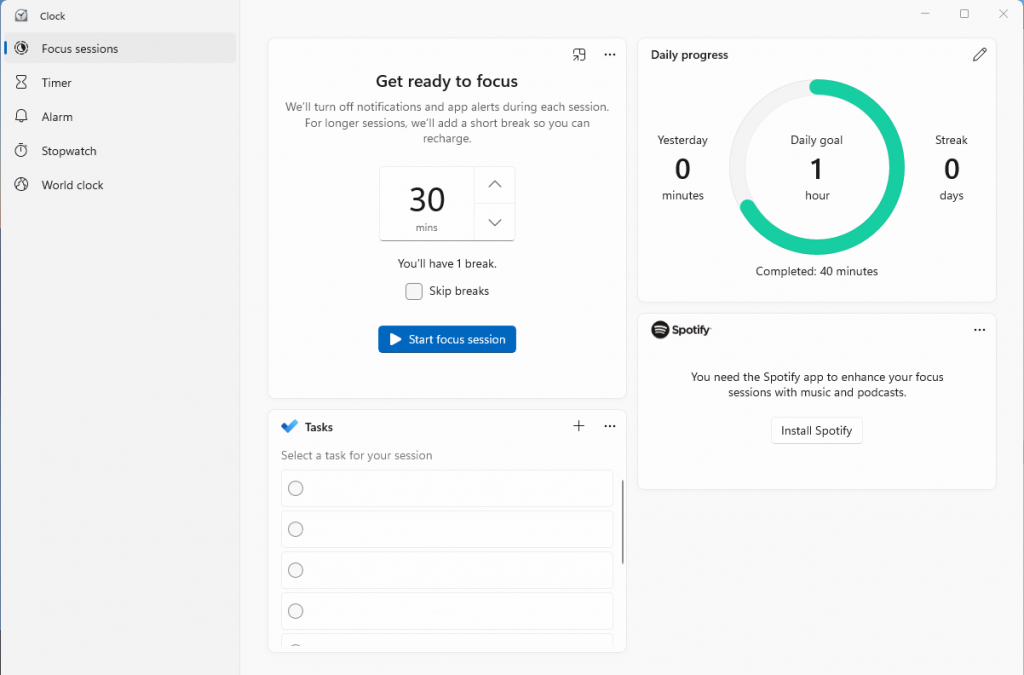
    Once the app is open, you will need to click onto Focus session which is the first option on the left-hand side navigation menu of the app.

    This will load the focus session page where you can choose how long you wish your next session to be and if you are wanting breaks.

    This page allows you to see your tasks that have been added in Microsoft ToDo, but for this to show you must make sure you are signed into your Microsoft account. You can install Spotify and begin to listen to music during your focus session if you wanted, although there is nothing stopping you from using other apps on Windows to listen to music.  

    Using focus sessions in the Clock app

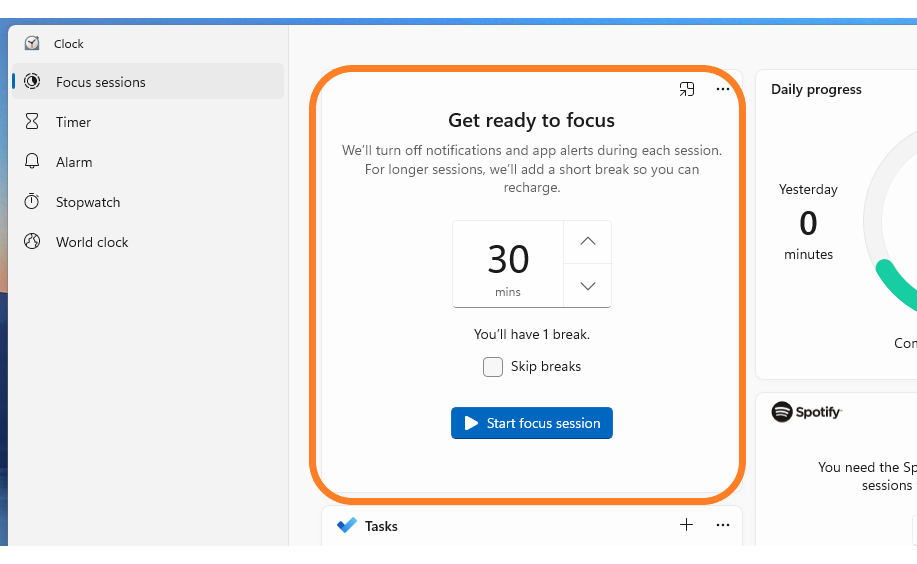
    In the middle of the tile, you can choose how long you want the focus session to last for using the buttons found on the right-hand side of the timer.

    The up arrow will increase the timer. The down arrow will decrease the timer. Depending on the length of time you choose, depends on if a break will be added within your focus session. If a break is added, you will see how many breaks you have under the timer input field.

    You have the option to skip breaks if you wish. If you want to skip breaks, then you need to make sure the skip breaks checkbox is checked.

    .

    When you are ready for the session to start, you just need to click onto start session which is the blue button under the timer.

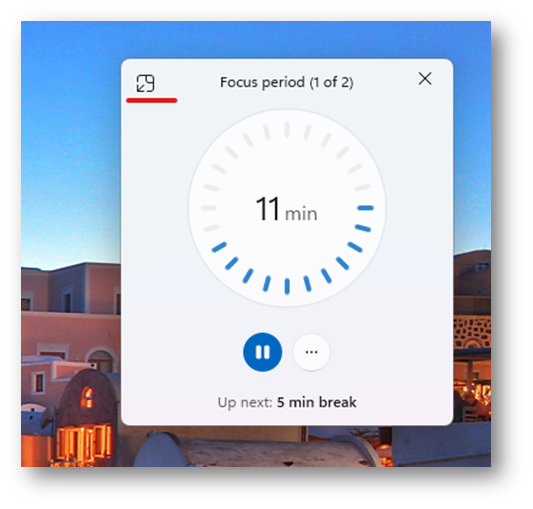
    Once you click onto the start focus session button, you will notice that the tile changes to a timer showing you how much time is left.

    You can choose to pause the timer at any time in the app by clicking onto the pause icon. The ellipsis icon (…) brings up a menu where you can choose to either show time remaining or not. By default, this is set to show time remaining.

    You will notice your notification icon on your Taskbar will change to a bell snoozing.

    This allows you to see that your notifications will be muted allowing you to focus on your tasks. In the top right corner of the tile, you see an icon with an arrow pointing inside a square.

    This option moves the tile out of the app and places it onto your screen in the top right corner.

    While this is good, it will display over the other windows on the monitor which may become too distracting. Unfortunately, you are unable to move the window when it is out of the app. This makes it more of a nuisance when you are trying to get on with your work and you have this window in the way.

    If you do decide that you wish the tile to be back in the Clock app, you will need to click onto the icon in the top left corner which looks like an arrow pointing out of a square.

    This will move it back into the clock app where you will be able to minimize the app and focus on what you need to be doing rather than the timer.

    When the timer has finished. The app will display get ready to focus part again. Allowing you to start the cycle all over again.

    Selecting a task to focus on during the focus session

    Underneath the get ready to focus tile, you will see your tasks tile. If you are not signed in, then you will need to sign in before this will populate with tasks from the Microsoft ToDo app.

    If you hover over a ToDo, you can choose a task to focus on that task for the session. Clicking onto the task will select it for the focus session. Once you have selected a task, you will notice a blue box around the selected task.

    After the session has ended, you will see a time under the task which tells you how long you have had on that task.

    If you have completed the task, you can mark it as completed by clicking into the circle on the left-hand side next to the name.

    This places a line through the task and marks it as completed. This will update the ToDo app.

  • Immersive Reader in Microsoft Edge

    Immersive Reader in Microsoft Edge

    The Immersive Reader is a reader that Microsoft have developed that takes the content from the page and places it inside the reader. It takes out unnecessary content such as adds, website navigational buttons and other content that isn’t included with the article. The user is able to customize the reader to make it easier for them to read the content inside the reader.

    The Immersive Reader is built into the Edge browser and can be accessed via the address bar when you navigate to a website. In your address bar, you will notice the Immersive Reader icon (looks like an open book with a speaker showing on the bottom right).

    You can open the Immersive Reader by pressing F9 on your keyboard. The Immersive Reader will open the page inside the reader. You will notice that content at the side of the page is removed leaving you with just the text and images that you need for the text.

    At the top of the reader, you will notice the reader options which are pinned. These options allow you to customize the reader for a better experience.

    Read aloud

    This option is the first option on the toolbar with a capital letter A with sound waves coming from the right-hand side of it.

    When you click onto this option, the computer will start reading the text to you. It will start from the top and work down. When it starts reading, the toolbar will be hidden and replaced with the read aloud toolbar. The screen will fade showing where the computer is at with reading the text.

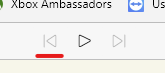
    You can pause, go back to the previous paragraph, or advance to the next paragraph by using the control options located in the middle of the toolbar.

    The play/pause button in the middle tells the computer to read or stop reading. The computer will remember where it is so when you press play, it will continue reading the text from where it stopped.

    The icon on the left-hand side of the play/pause button tells the reader to go back to the previous paragraph. If you are in the middle of a paragraph, this will go back to the start of that paragraph.

    The icon on the right-hand side of the play/pause button tells the reader to advance to the next paragraph.

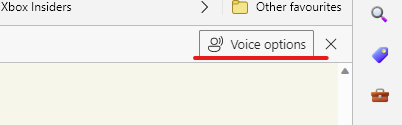
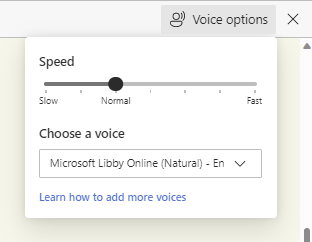
    On the far right-hand side of the toolbar, you will find voice options.

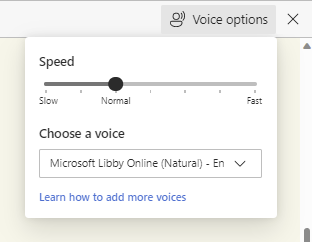
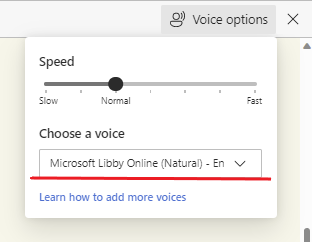
    This allows you to control the speed, type of voice that is used. When you click onto it, a drop-down menu will appear.

    By default, the voice speed will be set to normal, and the voice will be a woman’s voice. To change the speed, move the slider from left to right. Left slows the speed down and right will make the speed faster.

    To change the voice, click onto the drop-down menu for a list of different voices from female to male and with different accents.

    Just click onto the voice you want to use. The computer will then adjust the voice automatically without having to refresh and continue reading the text to you.

    Text preferences

    The text preferences option allows you to customise the text and the page theme. This allows you to customise the text so you can read it at ease.

    Text Size

    Your first option is text size. You can move the slider from left to right to make your text smaller or bigger. When you move the slider, you will notice that the text will be changed straight away.

    Text spacing

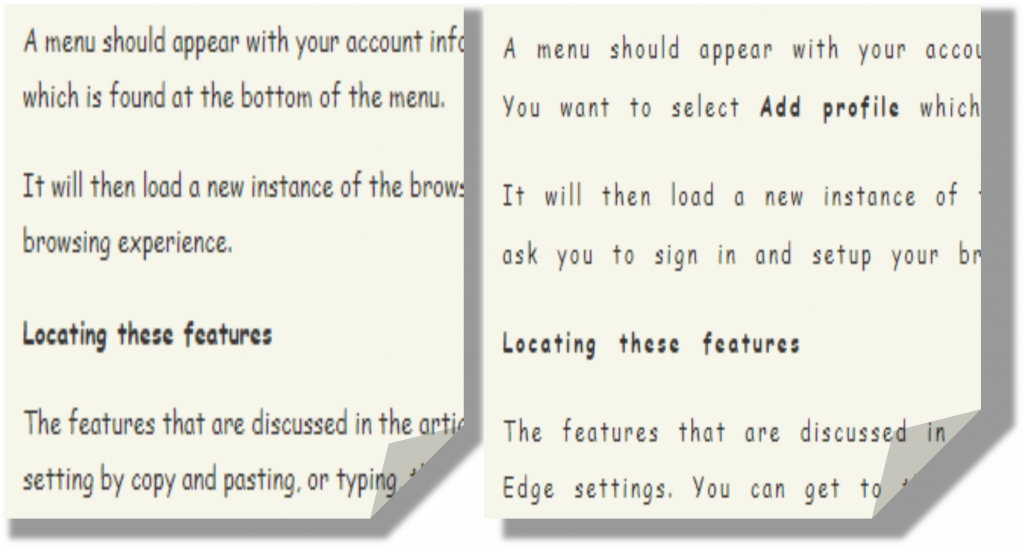
    Text spacing allows you to space the text on the page which will make it easier for people that find the text when it is too close together.

    The left-hand side shows the text without line spacing enabled. The image on the right shows the text spacing option enabled. As you can see, the text spaces out making it easier to read.

    Font

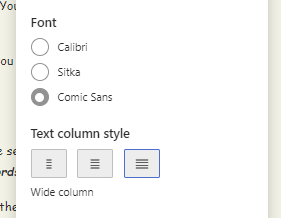
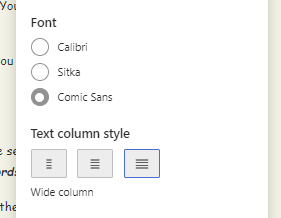
    You can choose between three different fonts for the Immersive Reader. This option is found under text spacing, as seen in this image underneath. These fonts have been tried by different people around the world, so Microsoft know they will work for a wide range of audiences.

    Text column style

    This allows you to choose how wide your columns are on the screen. This allows you to make it easier to read the text by making the area where the text is situated smaller, or larger, depending on the user.

    Page themes

    Page themes allow you to change the page colour which acts like an overlay that has been applied to the page. This option is located under text column style, as seen in the screenshot underneath.

    When you choose a page theme, depending on the theme, the text colour will change too. The setting will be applied as soon as you choose a theme. You may need to click onto more themes if you don’t see a theme that suits you listed.

    Grammar tools

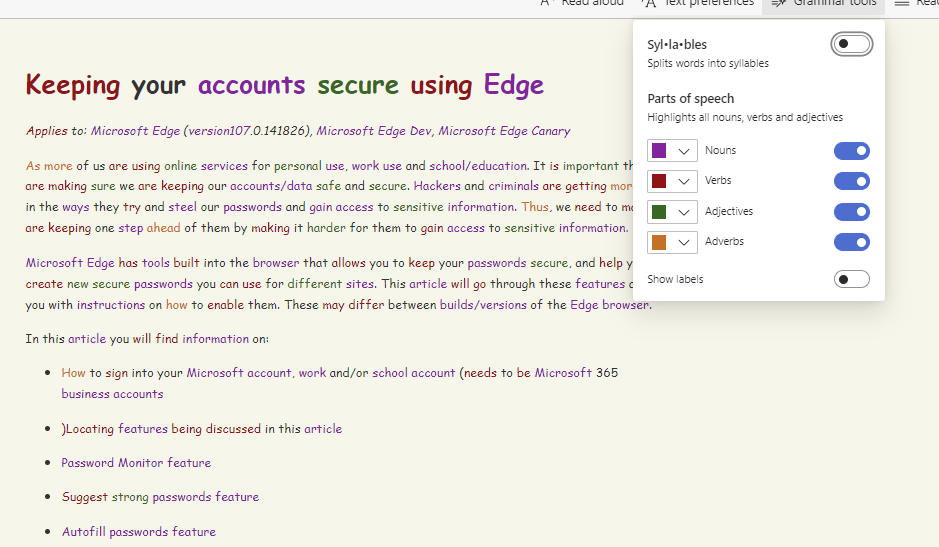
    Grammar tools allow you to customize how grammar is displayed on the screen. You can change settings to show parts of the speech or chose to show syllables.

    Syllables

    This option allows you to break words into their syllables. This option is the first option in the Grammar tools options, as seen in the screenshot underneath.

    When you apply this setting, you will notice the words have been broken into their syllables. This setting is useful for those who are struggling to read the words, or an individual word, and need it broken down into syllables, so they can read it.

    Parts of speech

    Parts of speech option allows you to highlight Nouns, Verbs, Adjectives, and Adverbs in different colours. This option can be found under the syllables option, as seen in the screenshot underneath.

    You can customize the colours, so they are colours you use in school or colours that make it easier for you to read. You can choose which labels are applied to the text using the toggles on the right-hand side.

    When you enable each option, the reader will highlight the words without the page been refreshed.

    This option is perfect for those who need help identifying Nouns, Verbs, Adjectives and Adverbs. You can choose to show labels which appears above the word. The show labels option is found at the bottom of the menu.

    This will change the spacing of the paragraphs and lines to allow the labels to show above each word. The labelling is the same labelling used in schools by educators.

    Reading Preferences

    Reading preferences allows you to customize how you read the text in the Immersive Reader and can be found on the right-hand side of the Grammar tools option on the menu.

    Line focus

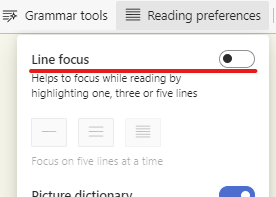
    This option allows you to focus on one, three, or five lines while you are reading. This is the first option in the menu.

    Once this option is enabled, you will be able to choose how many lines of text are focused at one time.

    As soon as you select an option, you will see an overlay been applied that will make the screen go darker apart from the lines which you are reading.

    You can move the line focus up or down using your mouse wheel or by using the arrow buttons on the bottom right-hand side of the screen (underlined in red in the image underneath).

    Picture dictionary

    Picture dictionary allows you to define words in the text using images to help you understand the word. This is the second option in the menu, found under line focus.

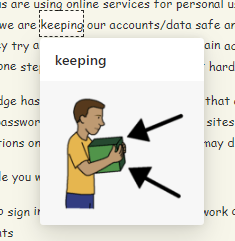
    When this option is enabled, you will be able to move your mouse curser over words in the text. If there is a definition supported by picture dictionary, you will see a wand appear over the word.

    When you click onto the word, a pop-up box will appear with a picture to help show the meaning of the word.

    Sometimes there may be more then one picture to help show the meaning of the word. This is ideal for people who are struggling to see what words mean and may benefit from a picture to help them understand the meaning.

    Translate

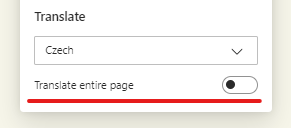
    This option is ideal for those who don’t speak the language the page is written in and needs it translating to their language so they can understand it. The translate feature is found under the picture dictionary option and will translate the entire page.

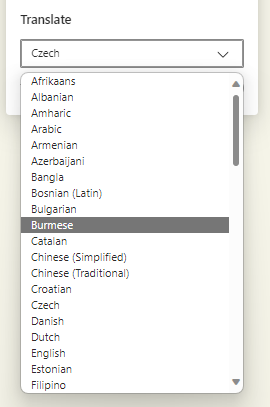
    You will need to select a language from the dropdown menu under translate.

    Once you have selected a language, you will need to enable the translate entire page option, found at the bottom.  

    This will translate the page to the chosen language. If you are using the picture dictionary, this may not work in all languages.