Tag: Microsoft Edge

  • Immersive Reader in Microsoft Edge

    Immersive Reader in Microsoft Edge

    The Immersive Reader is a reader that Microsoft have developed that takes the content from the page and places it inside the reader. It takes out unnecessary content such as adds, website navigational buttons and other content that isn’t included with the article. The user is able to customize the reader to make it easier for them to read the content inside the reader.

    The Immersive Reader is built into the Edge browser and can be accessed via the address bar when you navigate to a website. In your address bar, you will notice the Immersive Reader icon (looks like an open book with a speaker showing on the bottom right).

    You can open the Immersive Reader by pressing F9 on your keyboard. The Immersive Reader will open the page inside the reader. You will notice that content at the side of the page is removed leaving you with just the text and images that you need for the text.

    At the top of the reader, you will notice the reader options which are pinned. These options allow you to customize the reader for a better experience.

    Read aloud

    This option is the first option on the toolbar with a capital letter A with sound waves coming from the right-hand side of it.

    When you click onto this option, the computer will start reading the text to you. It will start from the top and work down. When it starts reading, the toolbar will be hidden and replaced with the read aloud toolbar. The screen will fade showing where the computer is at with reading the text.

    You can pause, go back to the previous paragraph, or advance to the next paragraph by using the control options located in the middle of the toolbar.

    The play/pause button in the middle tells the computer to read or stop reading. The computer will remember where it is so when you press play, it will continue reading the text from where it stopped.

    The icon on the left-hand side of the play/pause button tells the reader to go back to the previous paragraph. If you are in the middle of a paragraph, this will go back to the start of that paragraph.
    The icon on the right-hand side of the play/pause button tells the reader to advance to the next paragraph.

    On the far right-hand side of the toolbar, you will find voice options.
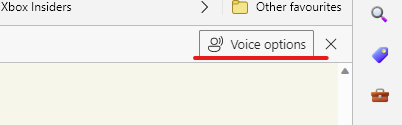
    This allows you to control the speed, type of voice that is used. When you click onto it, a drop-down menu will appear.
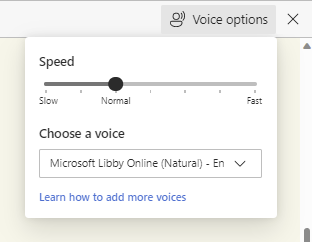
    By default, the voice speed will be set to normal, and the voice will be a woman’s voice. To change the speed, move the slider from left to right. Left slows the speed down and right will make the speed faster.
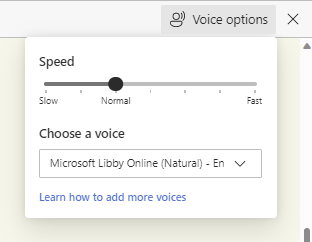
    To change the voice, click onto the drop-down menu for a list of different voices from female to male and with different accents.
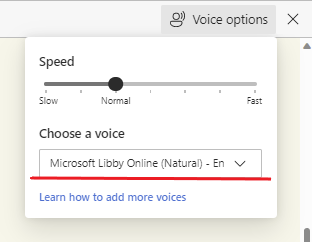
    Just click onto the voice you want to use. The computer will then adjust the voice automatically without having to refresh and continue reading the text to you.

    Text preferences

    The text preferences option allows you to customise the text and the page theme. This allows you to customise the text so you can read it at ease.

    Text Size

    Your first option is text size. You can move the slider from left to right to make your text smaller or bigger. When you move the slider, you will notice that the text will be changed straight away.

    Text spacing

    Text spacing allows you to space the text on the page which will make it easier for people that find the text when it is too close together.
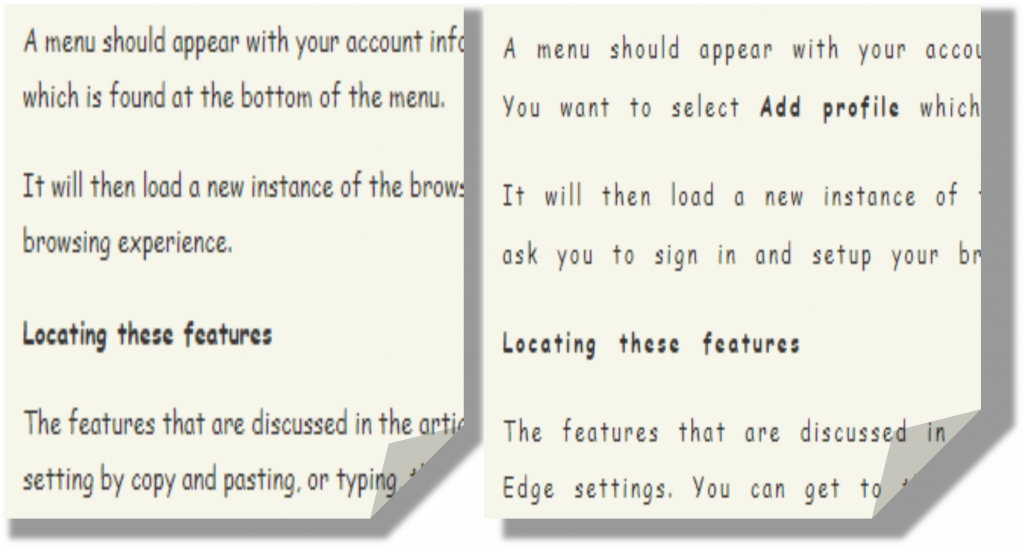
    The left-hand side shows the text without line spacing enabled. The image on the right shows the text spacing option enabled. As you can see, the text spaces out making it easier to read.

    Font

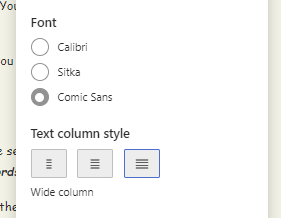
    You can choose between three different fonts for the Immersive Reader. This option is found under text spacing, as seen in this image underneath. These fonts have been tried by different people around the world, so Microsoft know they will work for a wide range of audiences.
    Text column style
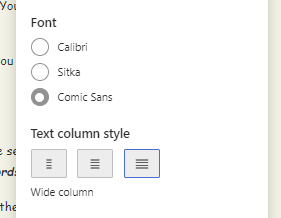
    This allows you to choose how wide your columns are on the screen. This allows you to make it easier to read the text by making the area where the text is situated smaller, or larger, depending on the user.

    Page themes

    Page themes allow you to change the page colour which acts like an overlay that has been applied to the page. This option is located under text column style, as seen in the screenshot underneath.

    When you choose a page theme, depending on the theme, the text colour will change too. The setting will be applied as soon as you choose a theme. You may need to click onto more themes if you don’t see a theme that suits you listed.

    Grammar tools

    Grammar tools allow you to customize how grammar is displayed on the screen. You can change settings to show parts of the speech or chose to show syllables.

    Syllables

    This option allows you to break words into their syllables. This option is the first option in the Grammar tools options, as seen in the screenshot underneath.

    When you apply this setting, you will notice the words have been broken into their syllables. This setting is useful for those who are struggling to read the words, or an individual word, and need it broken down into syllables, so they can read it.

    Parts of speech

    Parts of speech option allows you to highlight Nouns, Verbs, Adjectives, and Adverbs in different colours. This option can be found under the syllables option, as seen in the screenshot underneath.

    You can customize the colours, so they are colours you use in school or colours that make it easier for you to read. You can choose which labels are applied to the text using the toggles on the right-hand side.

    When you enable each option, the reader will highlight the words without the page been refreshed.
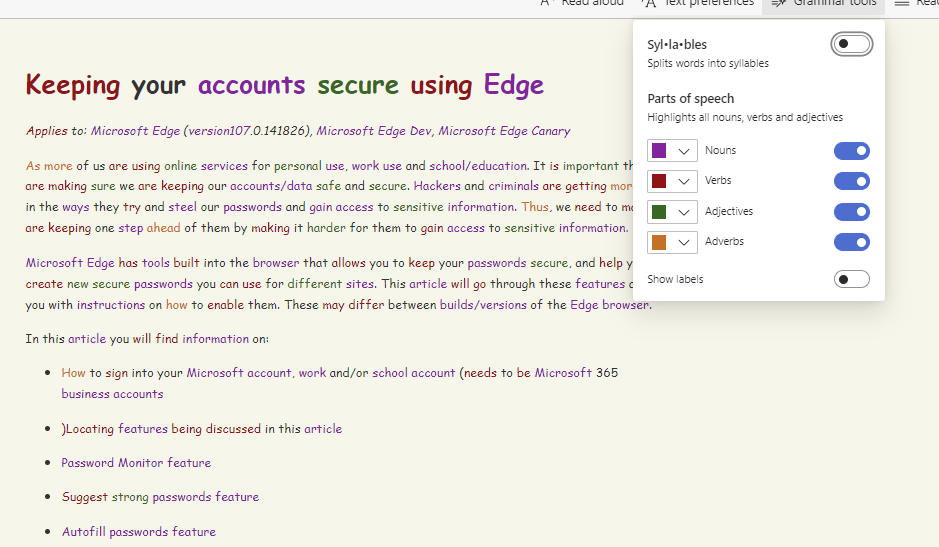
    This option is perfect for those who need help identifying Nouns, Verbs, Adjectives and Adverbs. You can choose to show labels which appears above the word. The show labels option is found at the bottom of the menu.

    This will change the spacing of the paragraphs and lines to allow the labels to show above each word. The labelling is the same labelling used in schools by educators.

    Reading Preferences

    Reading preferences allows you to customize how you read the text in the Immersive Reader and can be found on the right-hand side of the Grammar tools option on the menu.

    Line focus

    This option allows you to focus on one, three, or five lines while you are reading. This is the first option in the menu.
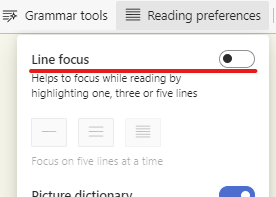
    Once this option is enabled, you will be able to choose how many lines of text are focused at one time.

    As soon as you select an option, you will see an overlay been applied that will make the screen go darker apart from the lines which you are reading.

    You can move the line focus up or down using your mouse wheel or by using the arrow buttons on the bottom right-hand side of the screen (underlined in red in the image underneath).

    Picture dictionary

    Picture dictionary allows you to define words in the text using images to help you understand the word. This is the second option in the menu, found under line focus.

    When this option is enabled, you will be able to move your mouse curser over words in the text. If there is a definition supported by picture dictionary, you will see a wand appear over the word.

    When you click onto the word, a pop-up box will appear with a picture to help show the meaning of the word.
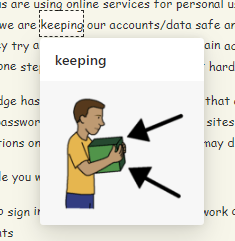
    Sometimes there may be more then one picture to help show the meaning of the word. This is ideal for people who are struggling to see what words mean and may benefit from a picture to help them understand the meaning.

    Translate

    This option is ideal for those who don’t speak the language the page is written in and needs it translating to their language so they can understand it. The translate feature is found under the picture dictionary option and will translate the entire page.

    You will need to select a language from the dropdown menu under translate.
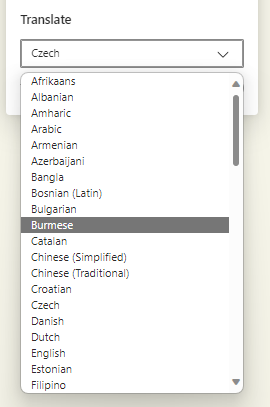
    Once you have selected a language, you will need to enable the translate entire page option, found at the bottom.  
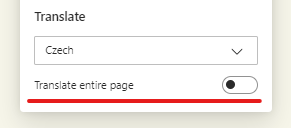
    This will translate the page to the chosen language. If you are using the picture dictionary, this may not work in all languages.
  • Keeping your accounts secure using Edge

    As more of us are using online services for personal use, work use and school/education. It is important that we are making sure we are keeping our accounts/data safe and secure. Hackers and criminals are getting more creative in the ways they try and steel our passwords and gain access to sensitive information. Thus, we need to make sure we are keeping one step ahead of them by making it harder for them to gain access to sensitive information.

    Microsoft Edge has tools built into the browser that allows you to keep your passwords secure, and help you create new secure passwords you can use for different sites. This article will go through these features and provide you with instructions on how to enable them. These may differ between builds/versions of the Edge browser.

    Sign in

    To use some of the features in this article, please ensure you have signed into the Edge browser and that it is synchronising. If you have a local profile and want to sign into your account (either work/school or personal account), please launch Edge.

    Then, on the top-left of the browser window, you want to click onto your avatar

    User's image

    A menu should appear with your account information & Microsoft rewards points. You want to select Add profile which is found at the bottom of the menu.

    It will then load a new instance of the browser on a new profile and begin to ask you to sign in and setup your browsing experience.

    Locating these features

    The features that are discussed in the article are in the password section in Edge settings. You can get to this setting by copy and pasting, or typing, the following URL: edge://settings/autofill/passwords

    You can navigate to these settings by clicking onto your profile avatar located on the top-left of your window.

    Then select the “Passwords & autofill”

    User's image

    You will then be taken to the Microsoft password manager which is built into the Microsoft Edge browser. This is where you can view all of your saved passwords under your Microsoft account, access more settings for your passwords and password security check feature.

    Password security check (Scan for leaked passwords)

    One feature the browser has is the password security check. This feature allows you to view passwords that have been leaked, reused or that are week.

    To access this feature, please click onto “Password security check”

    User's image

    As soon as you open the password security check, it will check all of your passwords stored to see if any have been leaked, reused or week. Once it has done this, it will update the table.

    For security, you should not use a password more than once for different sites. You should use one password for each site. This way, if one is compromised, the attacker cannot get into other accounts using the same password.

    At the top of the table, you will want to click the tab for what table you wish to see.

    User's image Each tab will display a different table showing your accounts. You can view your accounts and the options for viewing your passwords, changing your password, editing your password/info or deleting it.

    User's image If you are wanting to change your password, please click onto the change option. This will open a new tab onto the website’s page where you can sign into your account and change your password.

    If you want to delete the entry because you no longer have the account anymore, please click onto the ellipsis icon (three dots) and select delete.

    User's image

    It is important to keep your password list up to date. So if you no longer have an account, but have stored the username and password, you may as well remove it as it is no longer needed.

    Suggest strong passwords

    Another way we can keep our accounts secure online is by allowing Microsoft Edge to suggest strong passwords you can use on sites that you are creating accounts on. This generates random characters, numbers, and symbols that you can use as a password.

    This setting is called Suggest strong passwords”

    For this, you will need to go back to the Microsoft password manager page and click onto “More settings”

    User's image

    On the settings page, you will see a list of options you can enable or disable depending on your preference. I would suggest enabling the option for the browser to suggest strong passwords.

    User's image

    You can toggle this option on and off. If it is blue/green, and the white dot is to the right, then it means that it is on. By having this option enabled, Edge will offer randomly generated passwords you can use when signing up to sites. It will then save these passwords in Microsoft password manager, so you don’t need to try and remember the password it has generated. This will sync to your other devices you have signed into your account on.

    Once this feature has been enabled, you will notice that Edge will automatically generate a password for you to use on a site. You can trigger it to do this by right clicking into the password field and selecting the option to generate a strong password.

    User's image

    You will notice that this will be automatically generated and placed inside the password box. When you click into the password box, you can choose to refresh (generate a new password) or you can leave it alone and go ahead and create a new account on the site.

    View and autofill passwords and passkeys

    Microsoft password manager allows you to choose whether you want the browser to autofill passwords that it has stored for websites. I recommend enabling this feature on your account that no one else uses. If you have a shared account, do not turn this option on. To enable this feature, please toggle the autofill passwords and passkeys option to on and choose the relevant option you wish to use.

    User's image

    Once you have enabled this option, by default, the fill website password and sign in automatically option will be enabled. When you sign into a website that you have saved a username and password for, Edge will autofill your username and password for you as soon as you click onto the email/username box.

    If you are using a shared device with your own individual accounts, I would recommend using the “Prompt for the device sign-in options before viewing or filling website password” option for added security. This will prompt you for your Windows Hello pin before populating the sign in boxes with the relevant information. You can learn more about this here: https://aka.ms/requireauth

    Scan passwords for leaks

    This option is tied to the password security check option earlier in this article. I recommend having this enabled

    User's image

    Once enabled, the browser will automatically scan your passwords for any leaks that have been reported or detected. If there are any leaks, they will be visible on the leaks table in the password security check feature. It does also provide you a notification if it has detected anything. More information about this feature can be found here: https://go.microsoft.com/fwlink/?linkid=2356322

    Automatically upgrade to passkeys

    User's image

    This setting will prompt you to upgrade to a passkey to use instead of a password, if the site supports passkeys. Passkeys are more secure because of how they work. As security is advancing, more sites are moving away from traditional methods for account security and moving closer to new modern systems such as passkeys.


    I hope it was useful. Other articles you may be interested in reading are:

  • Turning off the MSN Newsfeed & Content in Microsoft Edge

    Turning off the MSN Newsfeed & Content in Microsoft Edge

    The Microsoft Edge start page has the MSN newsfeed which keeps you updated with all the latest news and updates around the world, and in your local area/country. However, not everyone wants this feed and would much prefer to have a start page with their pinned sites and a search bar.


    This article will walk you through the process of turning off the MSN newsfeed. This is another way you can customize Edge to just how you like it.

    (more…)
  • Installing Extensions in Microsoft Edge

    Installing Extensions in Microsoft Edge

    The new Microsoft Edge browser allows you to install extensions from Google Play and Microsoft Edge store. If you want to learn how to install extensions from either of these stores, this article will be a good place to start.

    (more…)

    Pages: 1 2

  • Saving Passwords on Microsoft Edge (Chromium)

    Microsoft Edge stores passwords for sites you frequently visit which make it easier for you to keep track of passwords you use when visiting sites. This article will explain how passwords are saved on Microsoft Edge and how you can update these saved passwords.

    (more…)

  • Managing saved passwords on Microsoft Edge

    Managing saved passwords on Microsoft Edge

    Microsoft has made vast improvements to where passwords are stored and how they can be accessed across devices. Passwords used to be stored in the browsers password manager which could have been accessed via the browser’s settings. However, with more people asking for the passwords to be accessed from other apps such as the Authenticator app, Microsoft made changes so that passwords are now stored in Wallet.

    (more…)