Working on a computer at home can have its challenges. Often, we get distracted by notifications from apps that appear on the screen when we are in the middle of doing something. We could find ourselves working too much and forget to have a break which results in us getting less productive over time.
In Windows 11 there is a setting “Focus sessions” which allows us to turn off notifications while this feature is on. The feature allows you to choose how long it is on for and if you are wanting breaks during the focus session. This is ideal for those of us who forget to have breaks while we are working. This works with the Clock app that is installed by default with Windows.
This article will walk through how to use this feature on the latest version of Windows 11 installed on a home computer or on Windows 365.
Starting a focus session from the Taskbar
You can start a focus session from the notification button. You will need to click onto the notification button found next to the date and time on your Taskbar.

If you click onto the notification button or the data and time, you will open your calendar and notifications on the right-hand side of your screen.

At the bottom of the calendar, you will see a timer on the bottom left-hand side which you can increase or decrease with the + and – buttons.

When you are happy with the time you are wanting for the focus session, you can click onto the Focus button which is on the bottom right.

This will start the focus session, where you will notice the notification icon changes to a bell snoozing.

By default, the focus session will contain five-minute breaks. This means that the session is broken into parts and between the parts there will be breaks. The number of breaks it will set depends on the length of time you have chosen.
If you want to end the session you will need to click onto the notification icon or date and time. You will see a button on the bottom right corner that says end session.

Clicking onto this will end the session and you will start to see new notifications appear on your screen when they come in. Old notifications you received during the session will not display on the screen. You will need to view these when you open your notifications.
When the timer has ended, or it has moved onto a break, you will get a notification on your desktop.

You can either choose to stop the session (first option) or choose to dismiss the notification (second option). When this notification displays it will chime. So, you don’t need to worry about missing it crop up on your screen. You will notice the timer will automatically move onto the next session (whether it is a break or a focus period within the session) .
When the total time has been reached, it will let you know that the focus session has ended and will return the notification icon back to its normal state.

You will start to receive notifications from apps again.
The clock app
The Clock app on Windows has Focus sessions built into it. This means you can turn on focus session directly from the app. You can set the duration that this will be on for. The app will display a timer which will count down the total time remaining before the session ends or until there is a break.
When you start a focus setting within the app, it behaves the same way as you starting a session from the Taskbar.
Finding the Clock app
You will need to open the Clock app which can be found in your app list.

Once the app is open, you will need to click onto Focus session which is the first option on the left-hand side navigation menu of the app.

This will load the focus session page where you can choose how long you wish your next session to be and if you are wanting breaks.
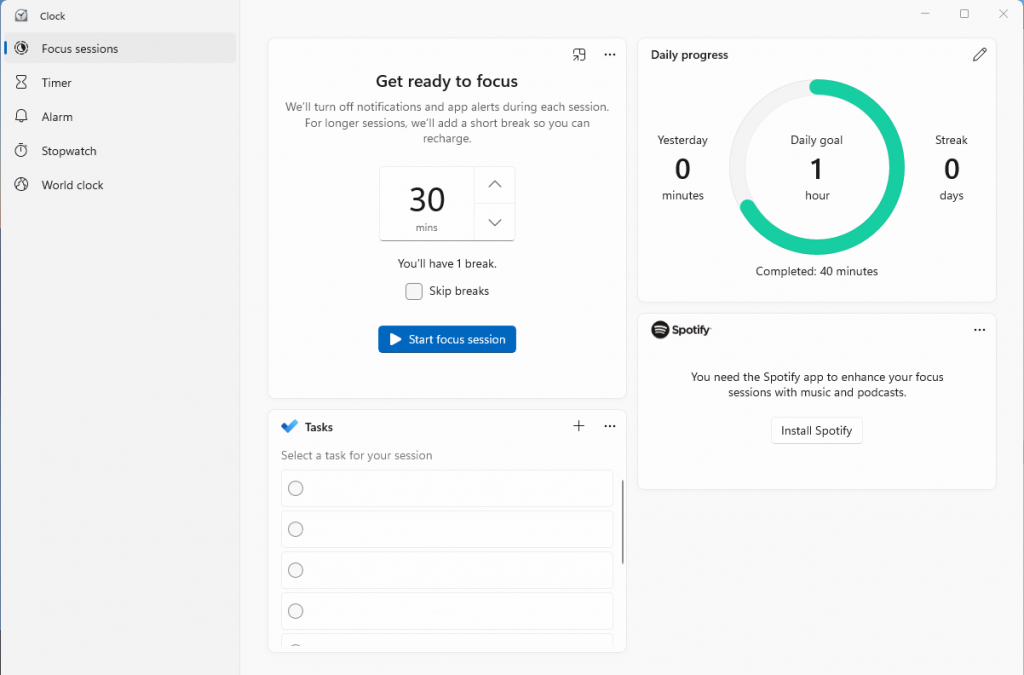
This page allows you to see your tasks that have been added in Microsoft ToDo, but for this to show you must make sure you are signed into your Microsoft account. You can install Spotify and begin to listen to music during your focus session if you wanted, although there is nothing stopping you from using other apps on Windows to listen to music.
Using focus sessions in the Clock app
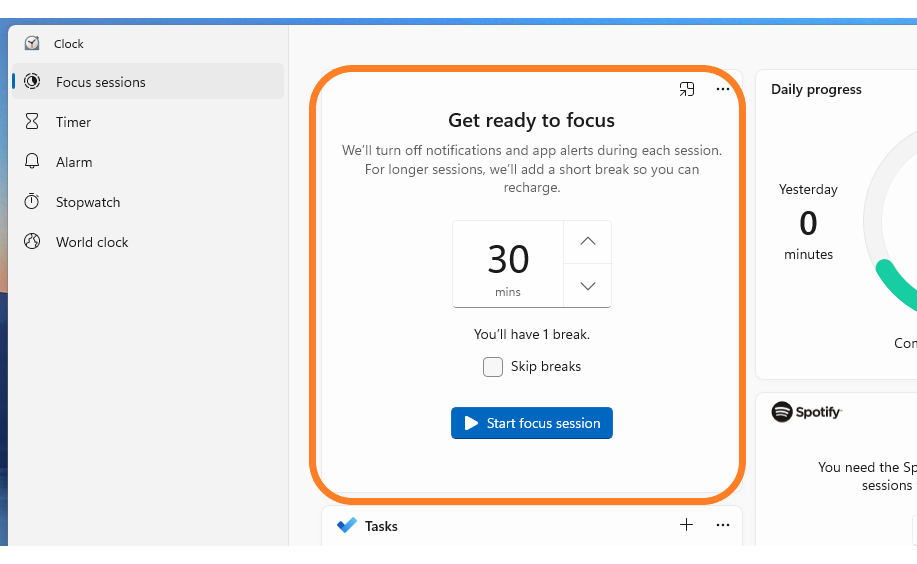
In the middle of the tile, you can choose how long you want the focus session to last for using the buttons found on the right-hand side of the timer.

The up arrow will increase the timer. The down arrow will decrease the timer. Depending on the length of time you choose, depends on if a break will be added within your focus session. If a break is added, you will see how many breaks you have under the timer input field.

You have the option to skip breaks if you wish. If you want to skip breaks, then you need to make sure the skip breaks checkbox is checked.

.
When you are ready for the session to start, you just need to click onto start session which is the blue button under the timer.

Once you click onto the start focus session button, you will notice that the tile changes to a timer showing you how much time is left.

You can choose to pause the timer at any time in the app by clicking onto the pause icon. The ellipsis icon (…) brings up a menu where you can choose to either show time remaining or not. By default, this is set to show time remaining.
You will notice your notification icon on your Taskbar will change to a bell snoozing.
This allows you to see that your notifications will be muted allowing you to focus on your tasks. In the top right corner of the tile, you see an icon with an arrow pointing inside a square.

This option moves the tile out of the app and places it onto your screen in the top right corner.

While this is good, it will display over the other windows on the monitor which may become too distracting. Unfortunately, you are unable to move the window when it is out of the app. This makes it more of a nuisance when you are trying to get on with your work and you have this window in the way.
If you do decide that you wish the tile to be back in the Clock app, you will need to click onto the icon in the top left corner which looks like an arrow pointing out of a square.
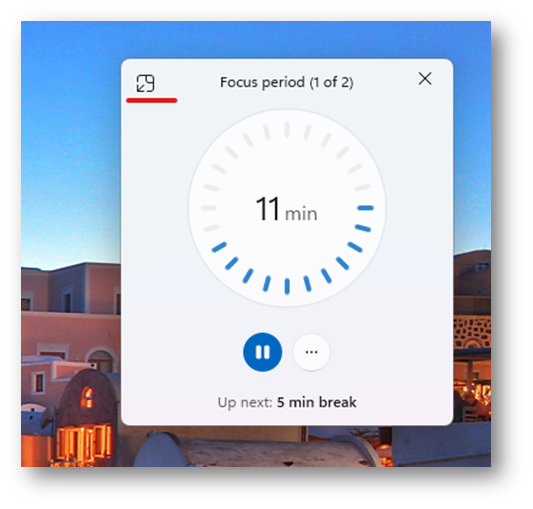
This will move it back into the clock app where you will be able to minimize the app and focus on what you need to be doing rather than the timer.
When the timer has finished. The app will display get ready to focus part again. Allowing you to start the cycle all over again.
Selecting a task to focus on during the focus session
Underneath the get ready to focus tile, you will see your tasks tile. If you are not signed in, then you will need to sign in before this will populate with tasks from the Microsoft ToDo app.

If you hover over a ToDo, you can choose a task to focus on that task for the session. Clicking onto the task will select it for the focus session. Once you have selected a task, you will notice a blue box around the selected task.
After the session has ended, you will see a time under the task which tells you how long you have had on that task.

If you have completed the task, you can mark it as completed by clicking into the circle on the left-hand side next to the name.

This places a line through the task and marks it as completed. This will update the ToDo app.